Power Query Connection
For this solution, you need to copy a query from Business Central:
-
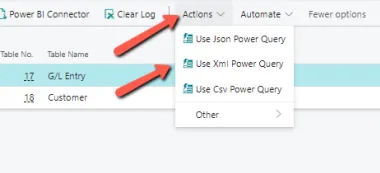
After setting up your SimpleAPI extension and selecting the table and fields you want to gather data from, click on “Actions” -> “Use XML Power Query.”
-
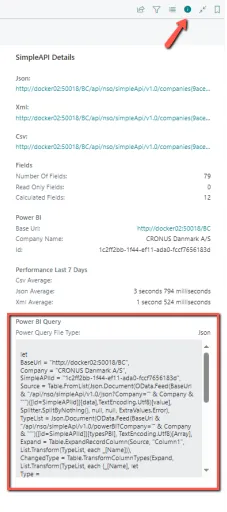
Next, copy the text from the “Power Query” section in the information box
-
Once you have copied the query, open Power BI Desktop.
-
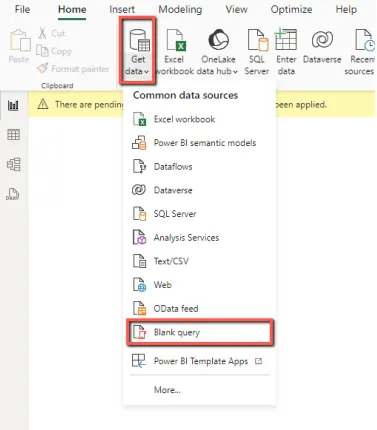
In the program, click on “Get Data” -> “Blank Query.”
-
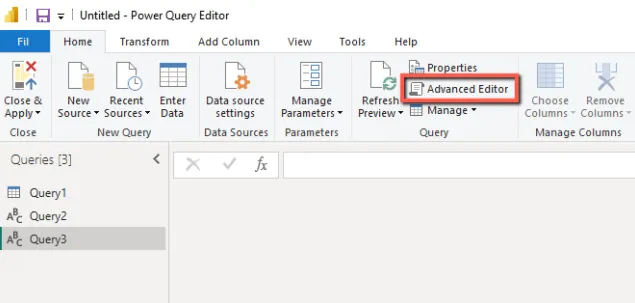
This will open a new window. In this window, find “Advanced Editor” under the “Home” tab.
-
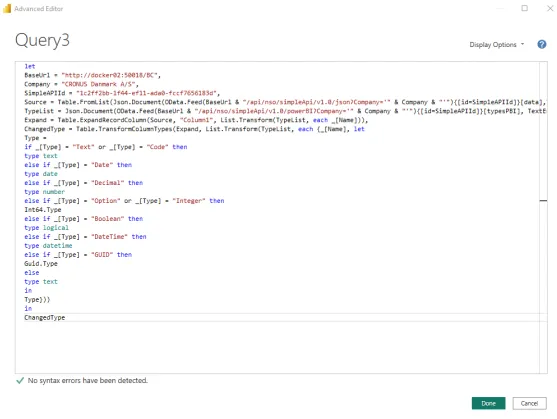
Delete all the text in the new Query window and paste the text you copied from Business Central. Your window should now look like this.
-
Click on “Done.”
-
If this is your first time doing this, a data privacy message will appear at the top of the window. Click “Continue.”
-
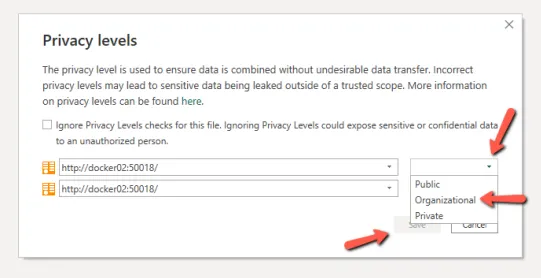
In the new window, press the small downward arrow, select “Organizational,” and then press “Save.”
-
Afterwards a message with credentials is going to pop-up, click on the “Edit Credentials”

-
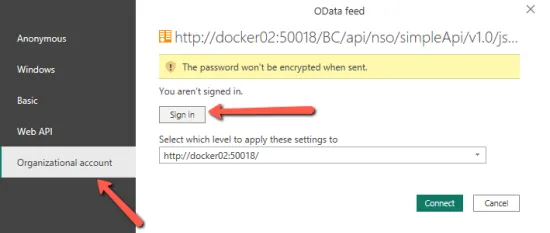
In the new window select “Organizational account” and the “Sign in”
-
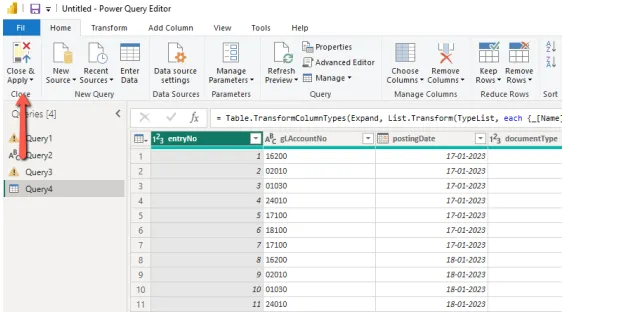
The data is now available, make sure the delimiter is Comma then you can transform or load the data by pressing “Close & Load” in the top left corner.