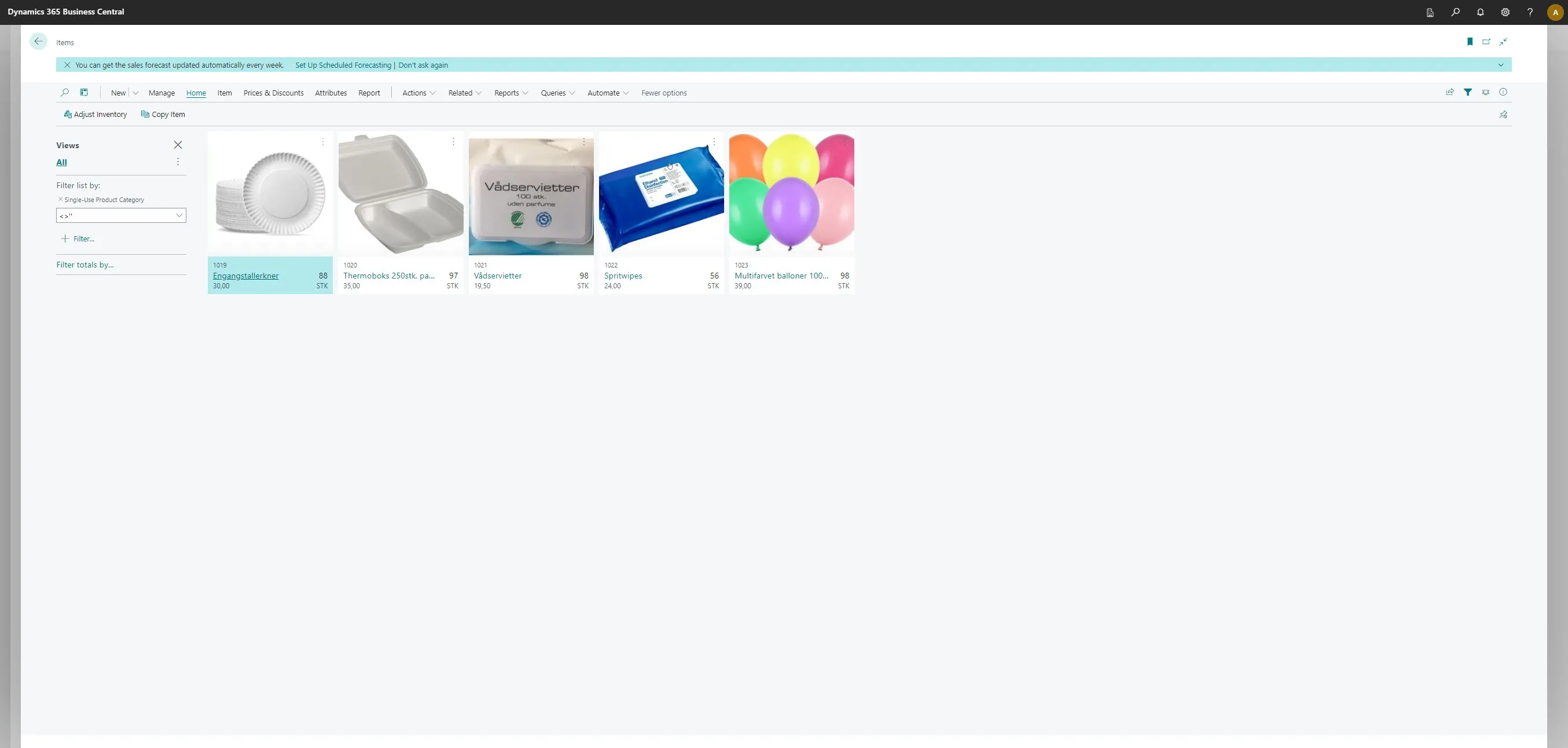
Setup Single Use Plastics Information On Your Items
-
Open your Business Central
-
Click “Items”
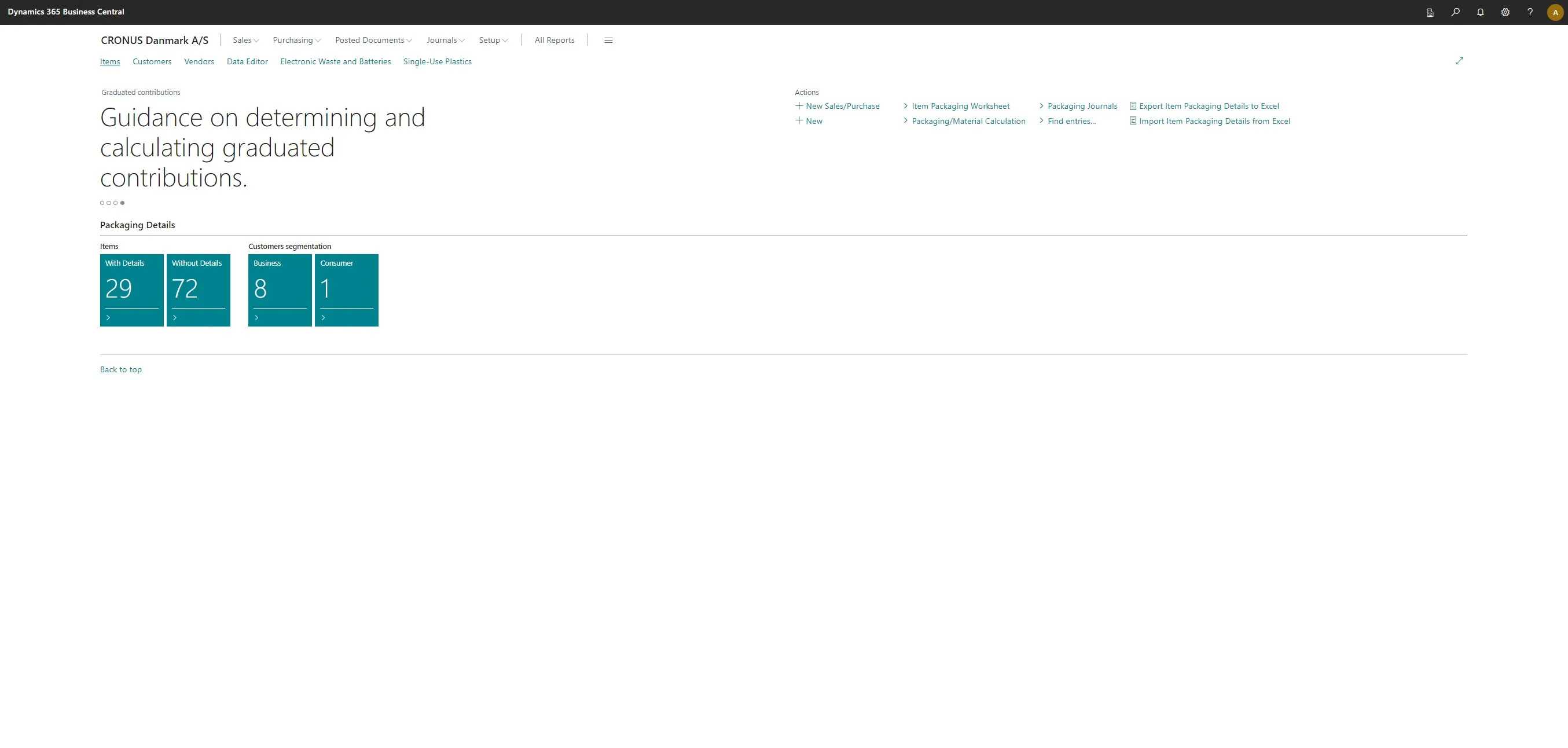
-
Select the item you want to add the details to.
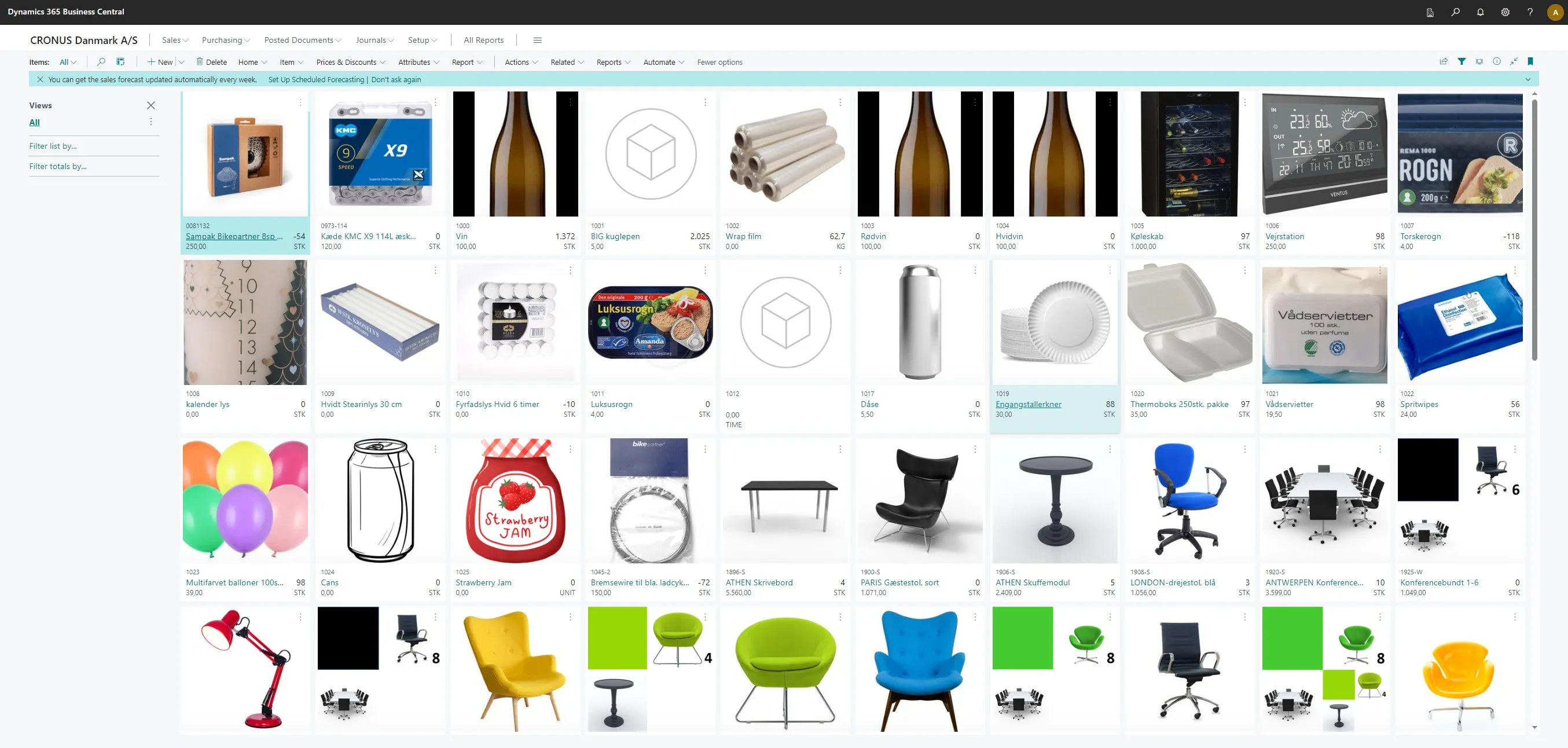
-
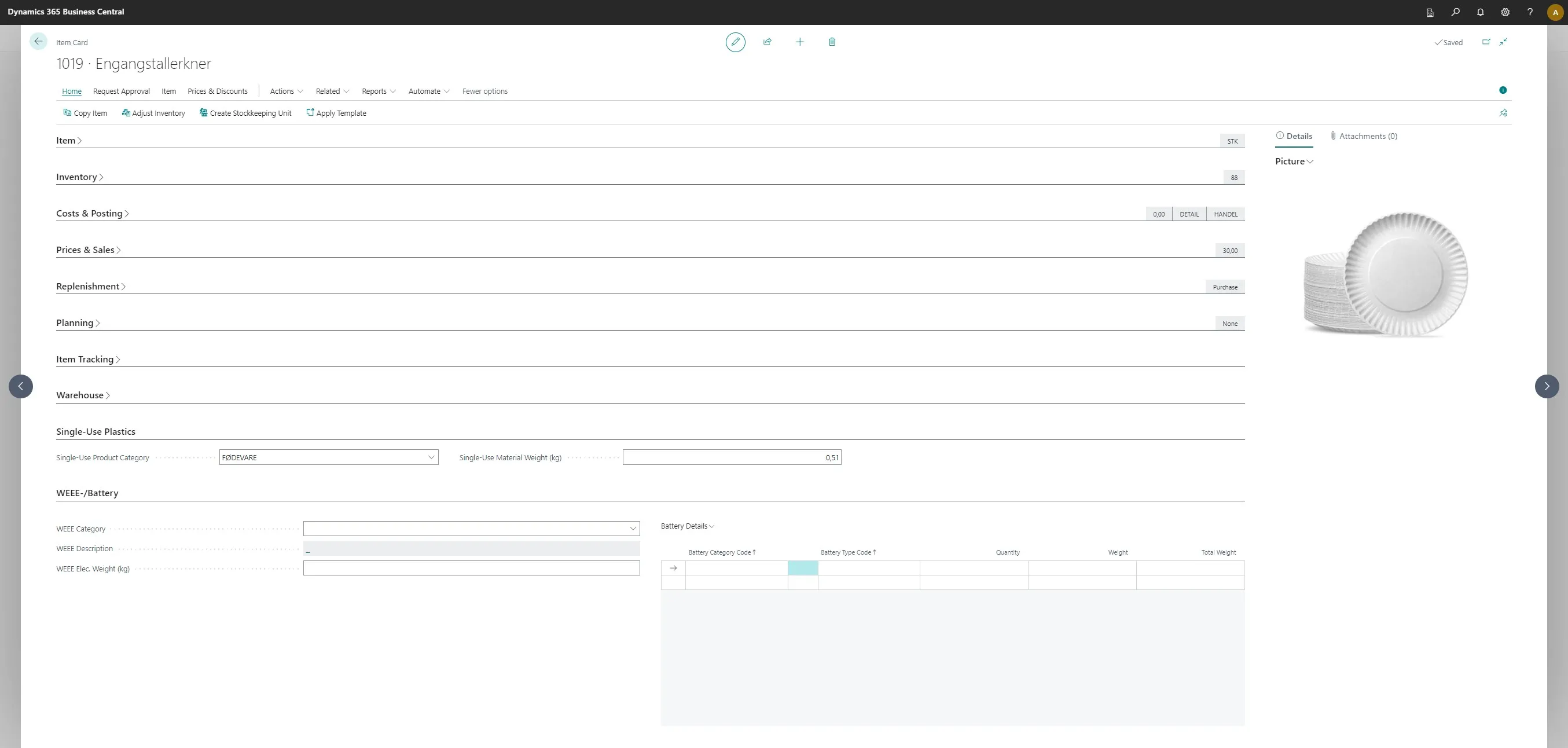
Scroll down to the “Single-Use Plastics” tab on your item card.
-
Click on the downward arrow in the first field to select one of the categories you set up earlier.
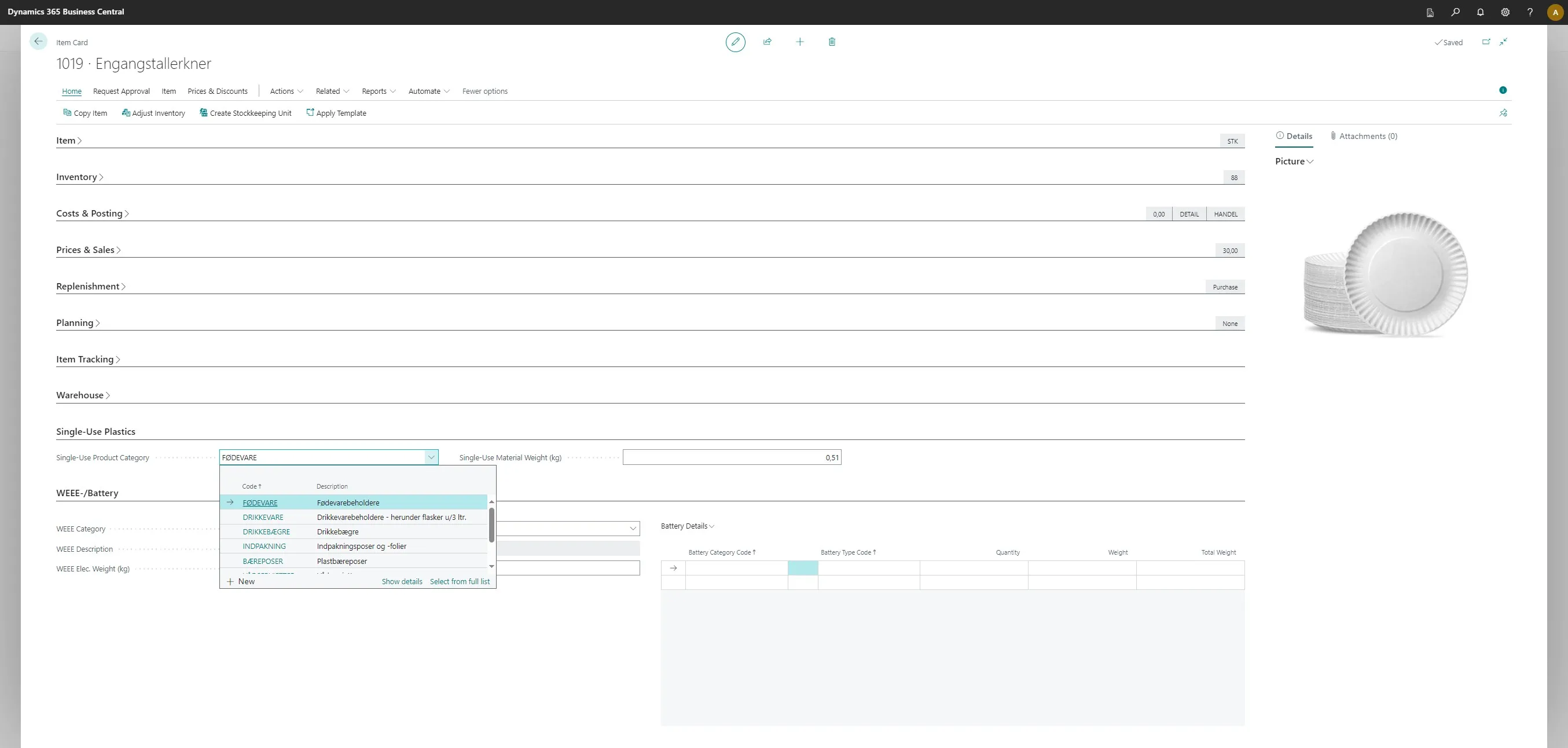
-
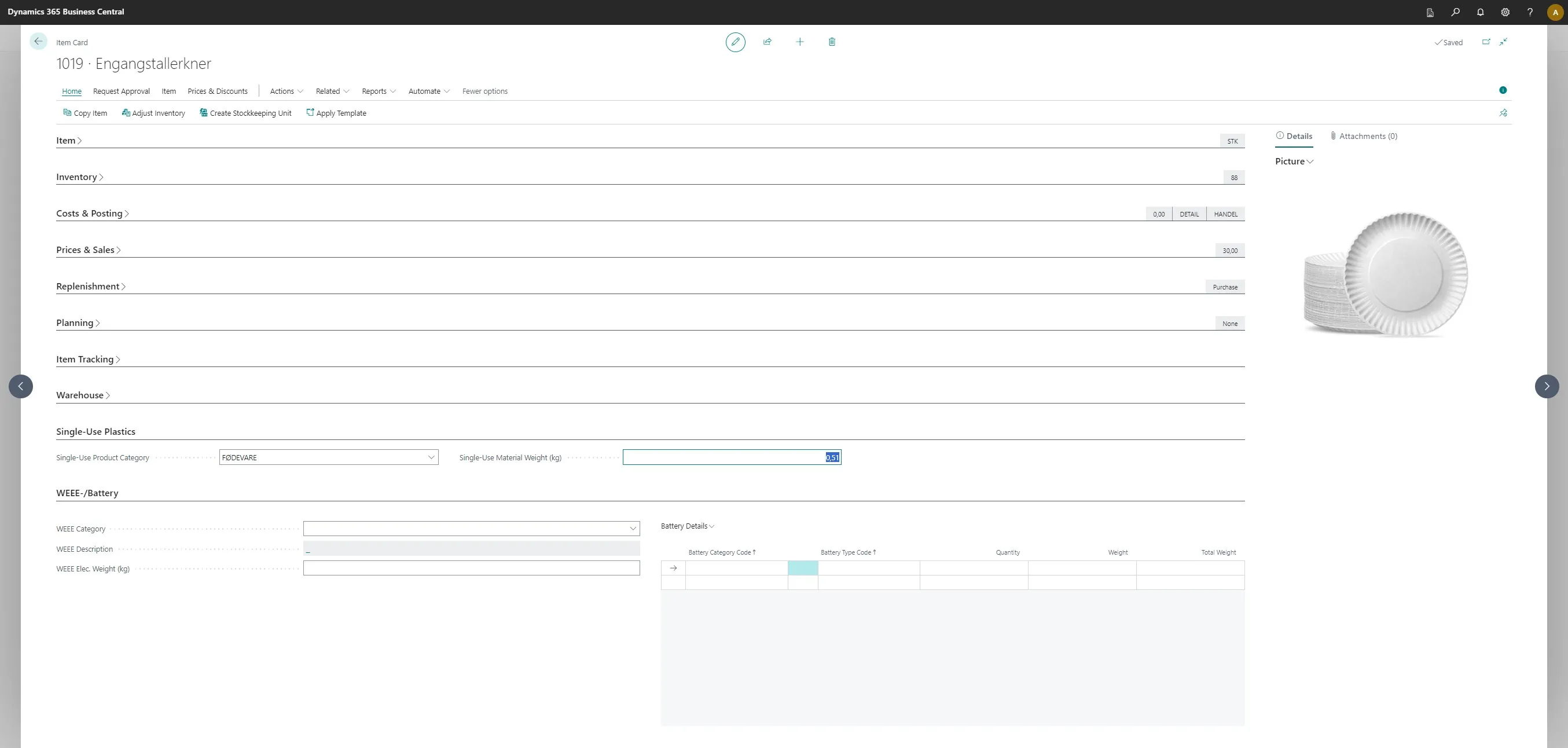
Once that’s done, click on the field next to it and enter the weight of the material.
-
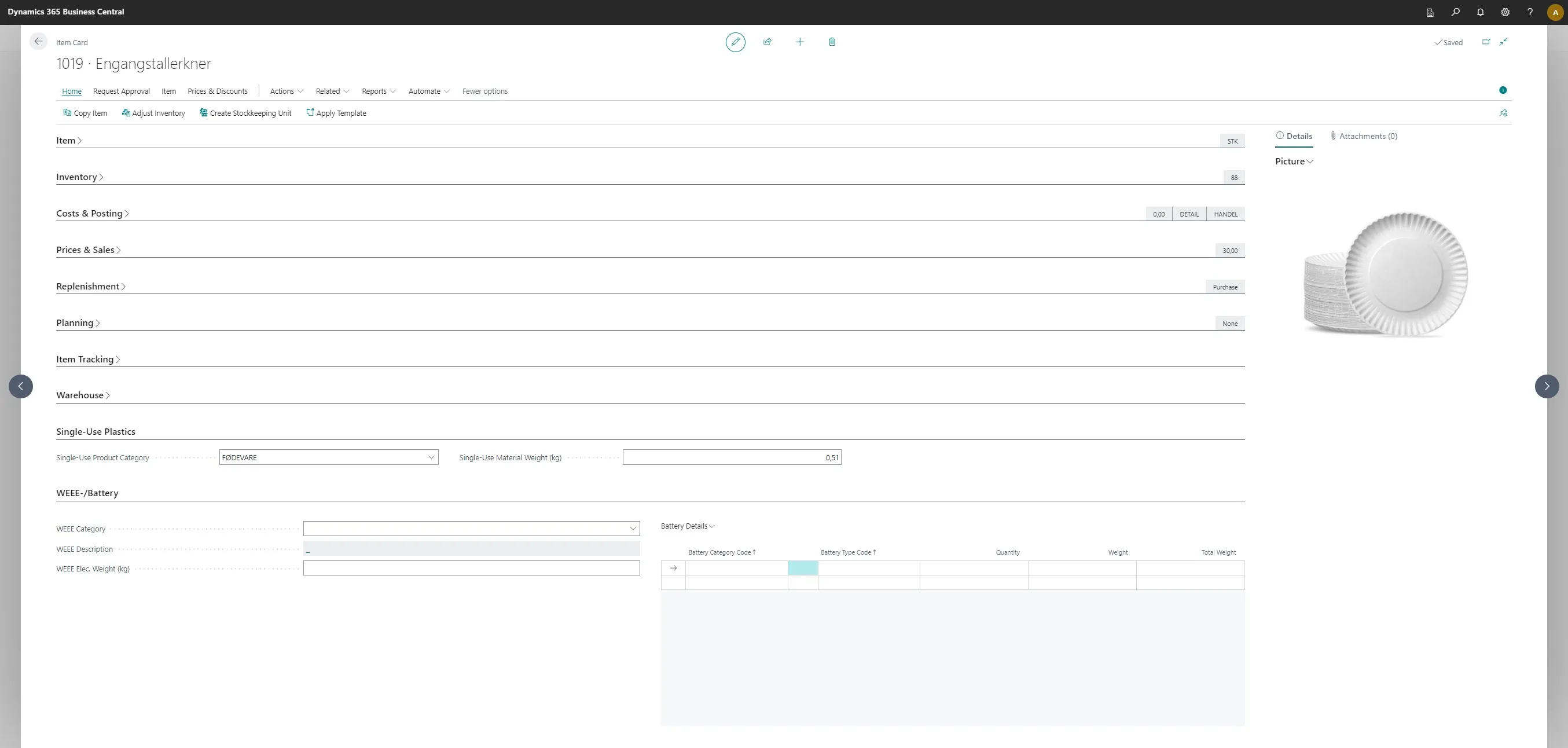
After entering your packaging details, click on the arrow in the top left corner.
-
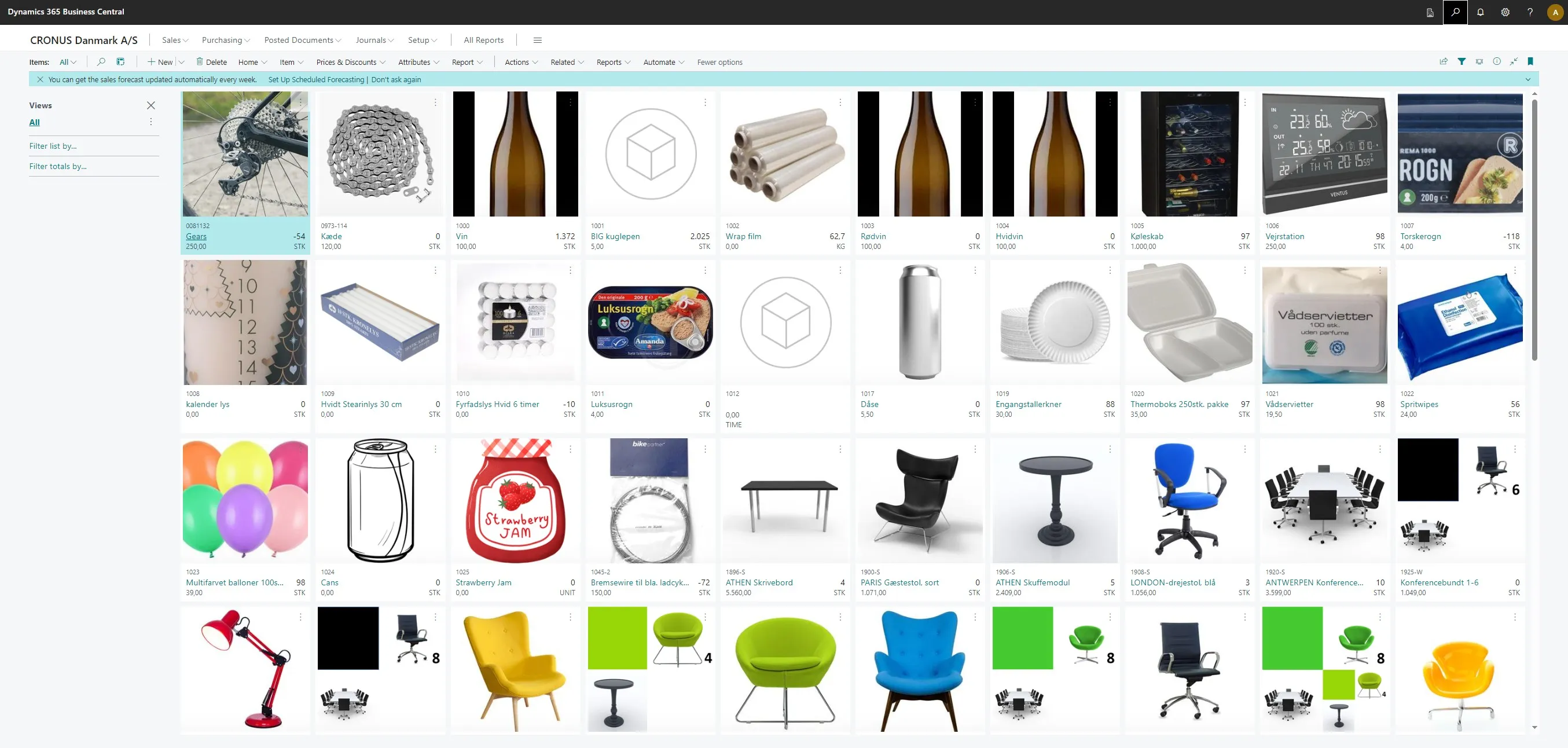
Click on your search icon or press ALT + Q
-
Type in “single-use plastics” and click on the related link.
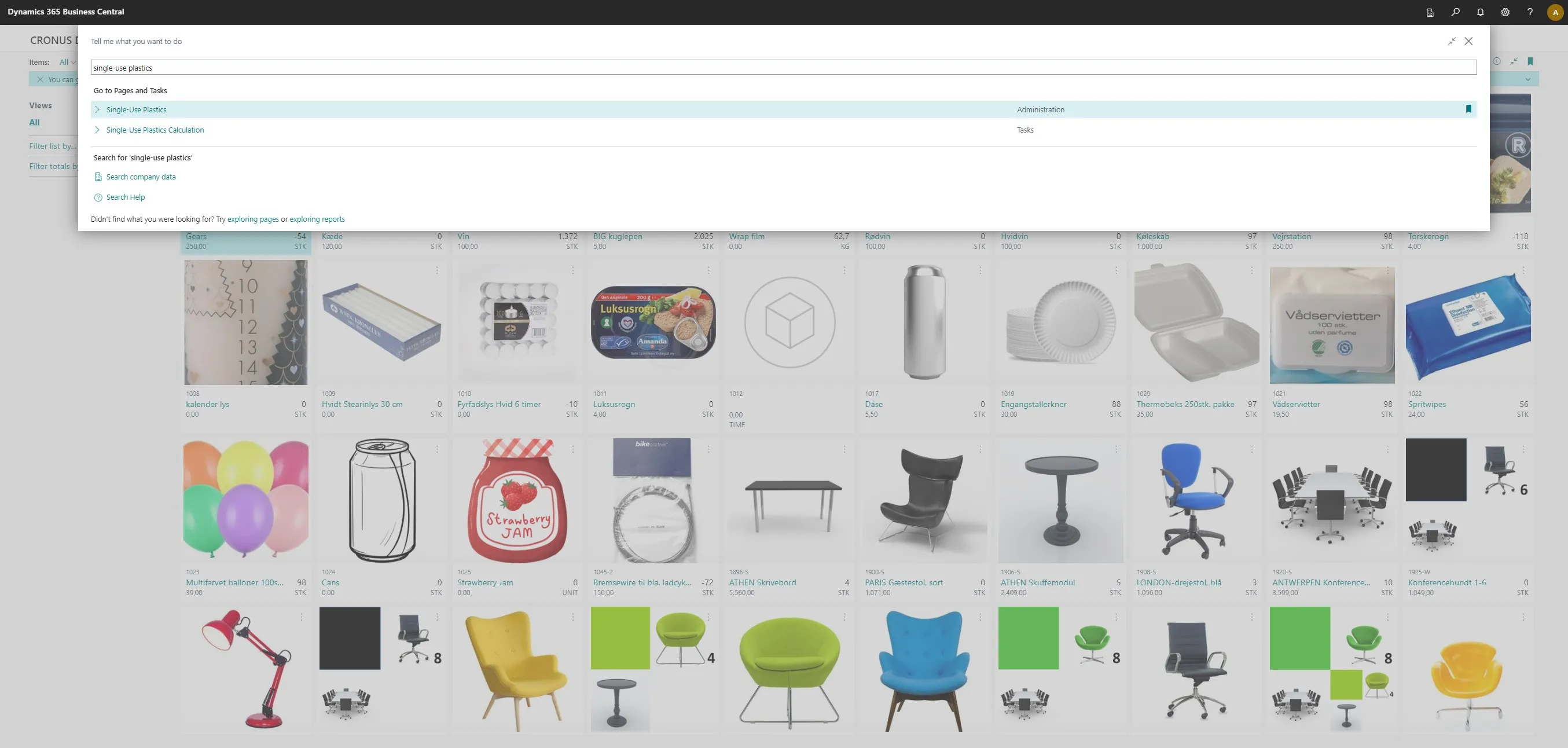
-
Click on the “With Single-Use Category” tile under “Items” within the Single-Use Plastics module.
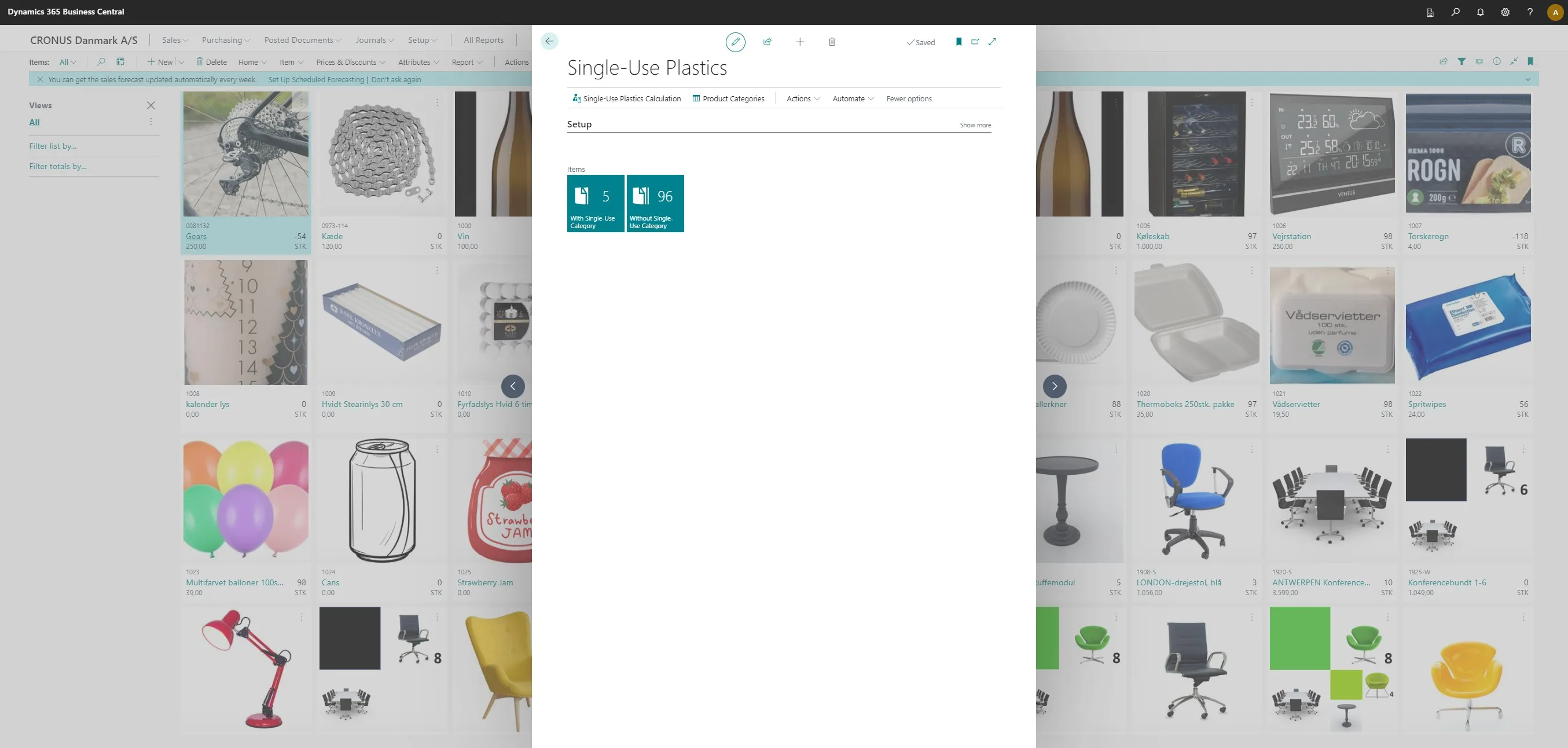
-
Here, you will be able to see which items you have added details for.