Permission Sets
Before the solution can be used, it is important that users are first assigned the necessary licenses in Microsoft Adminstration 365. After that, they must be assigned the correct permission sets in Business Central.
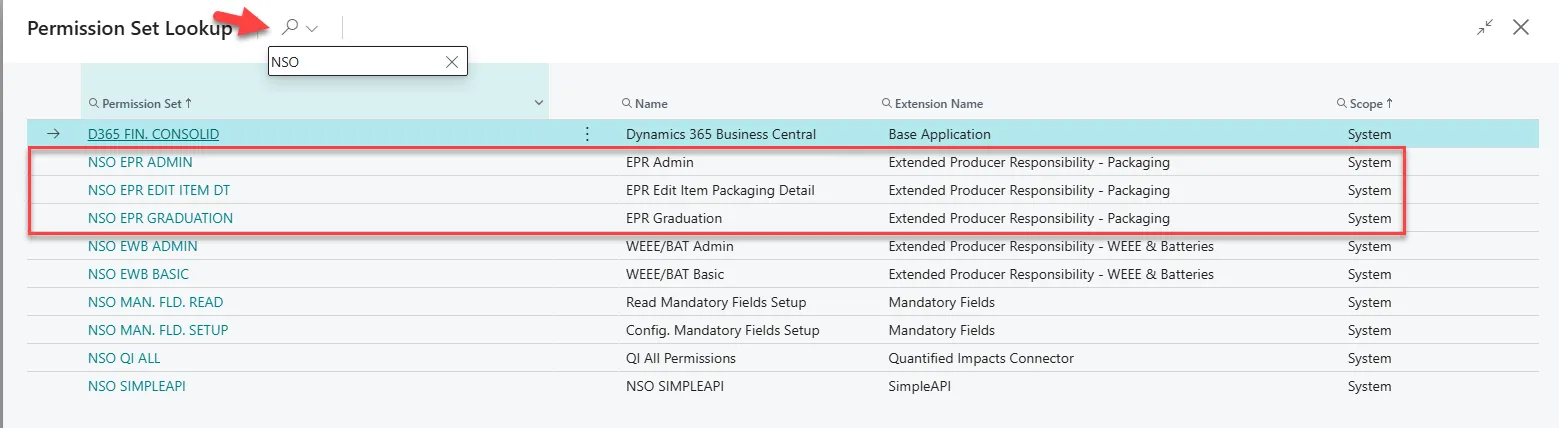
There are two standard permission sets included in the solution that need to be assigned. If the graduation module is purchased, an additional permission set must also be assigned:
- NSO ERP ADMIN: This is the administrator permission set and should be assigned to users with admin licenses. It provides access to all functionalities in the solution, including the creation of packaging details and the ability to generate reports based on packaging consumption entries.
- NSO EPR EDIT ITEM DT: This is the standard permission set that must be assigned to all regular users in Business Central who perform postings. It is important that users have this permission set, as they will otherwise encounter errors when posting documents.
- NSO EPR GRADUATION (Additional): This permission set is part of the graduation module and should be assigned to users with admin licenses and administrator permissions. It enables access to the assisted graduation setup within the solution.
Assigning permissions:
Section titled “Assigning permissions:”- Select Search (Alt+Q) in the upper-right corner.
- Enter Users, and then choose the related link.
- Select the user from the list you wish to assign the permissions.
- Select “Make changes to the page” (Edit function).
- Navigate to the User Permission Sets section.
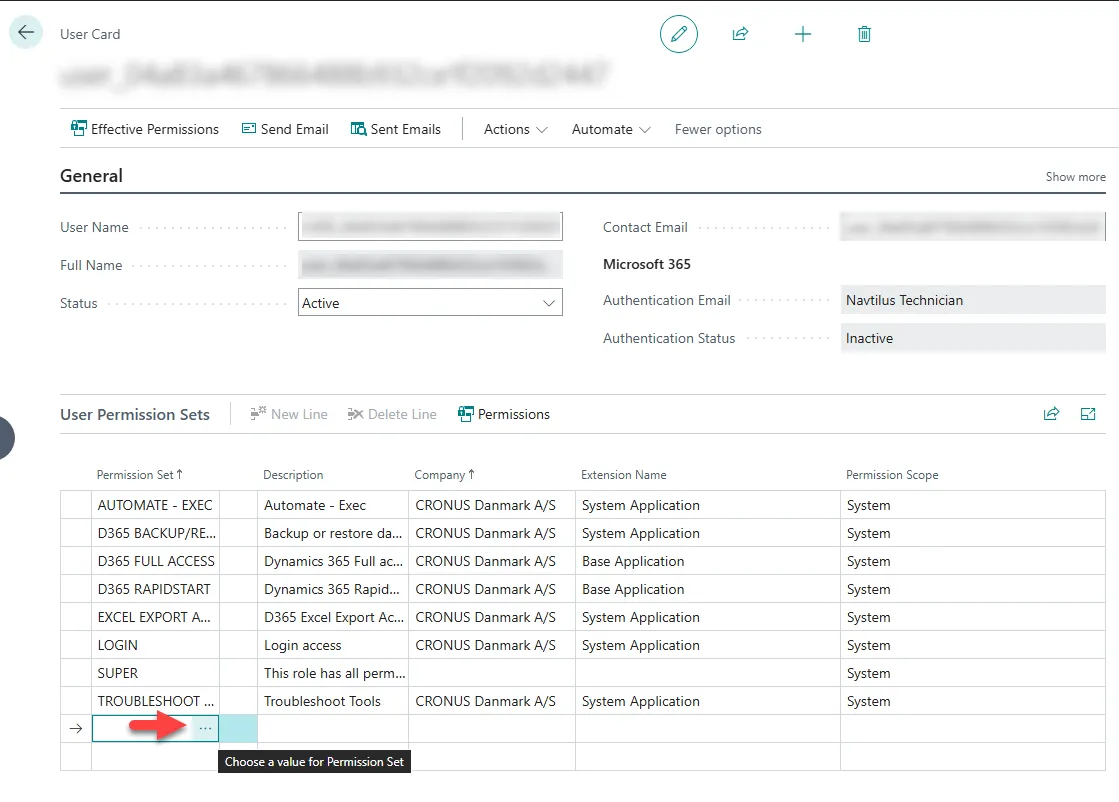
- Select New Line.
- In the Permission Set column, select the three dots.
- Select the search icon at the top.
- Enter “NSO”.
- Select the needed permission set.