

Add WEEE and Battery Details to Your Items
-
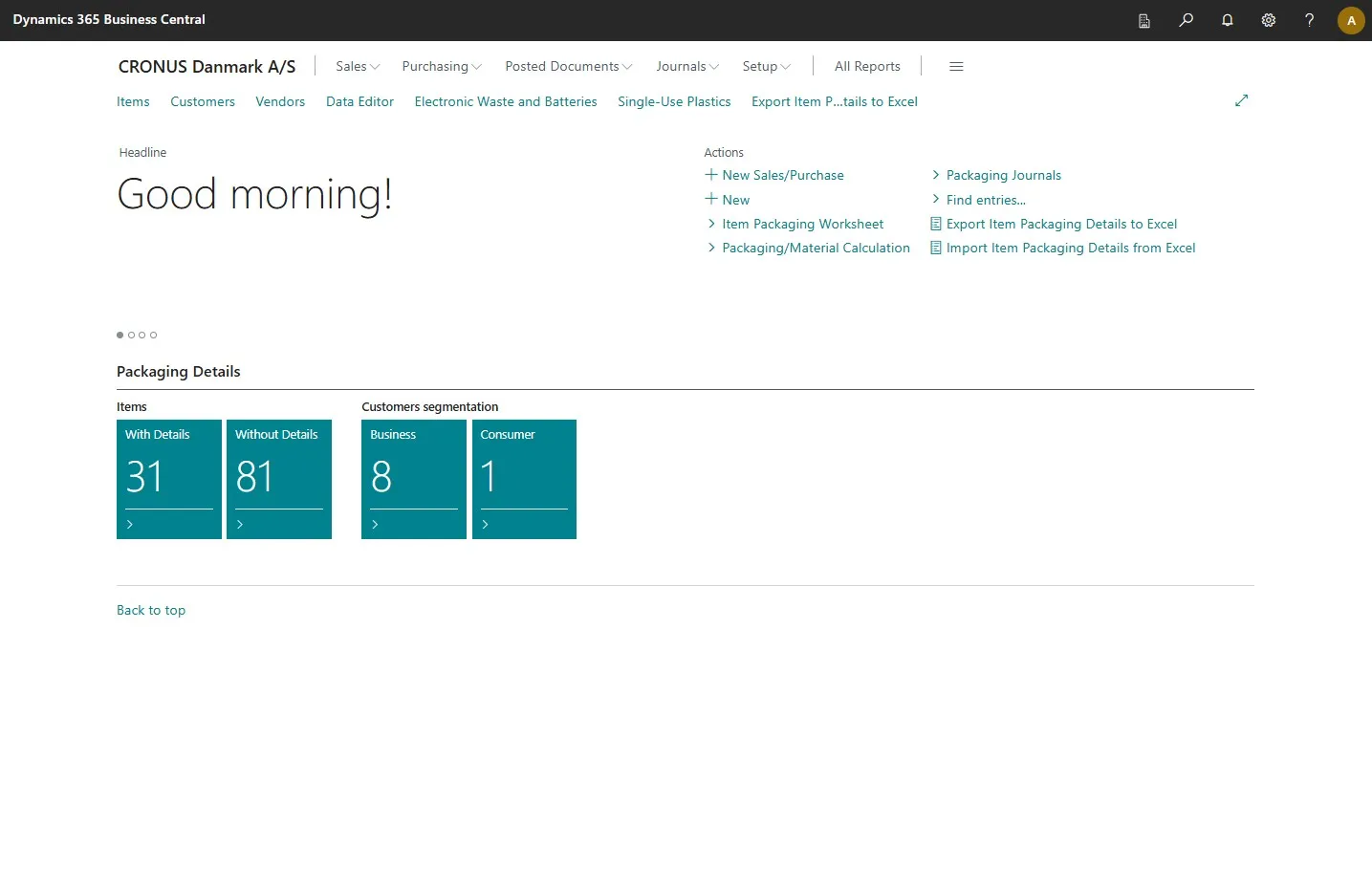
Open your Business Central.
-
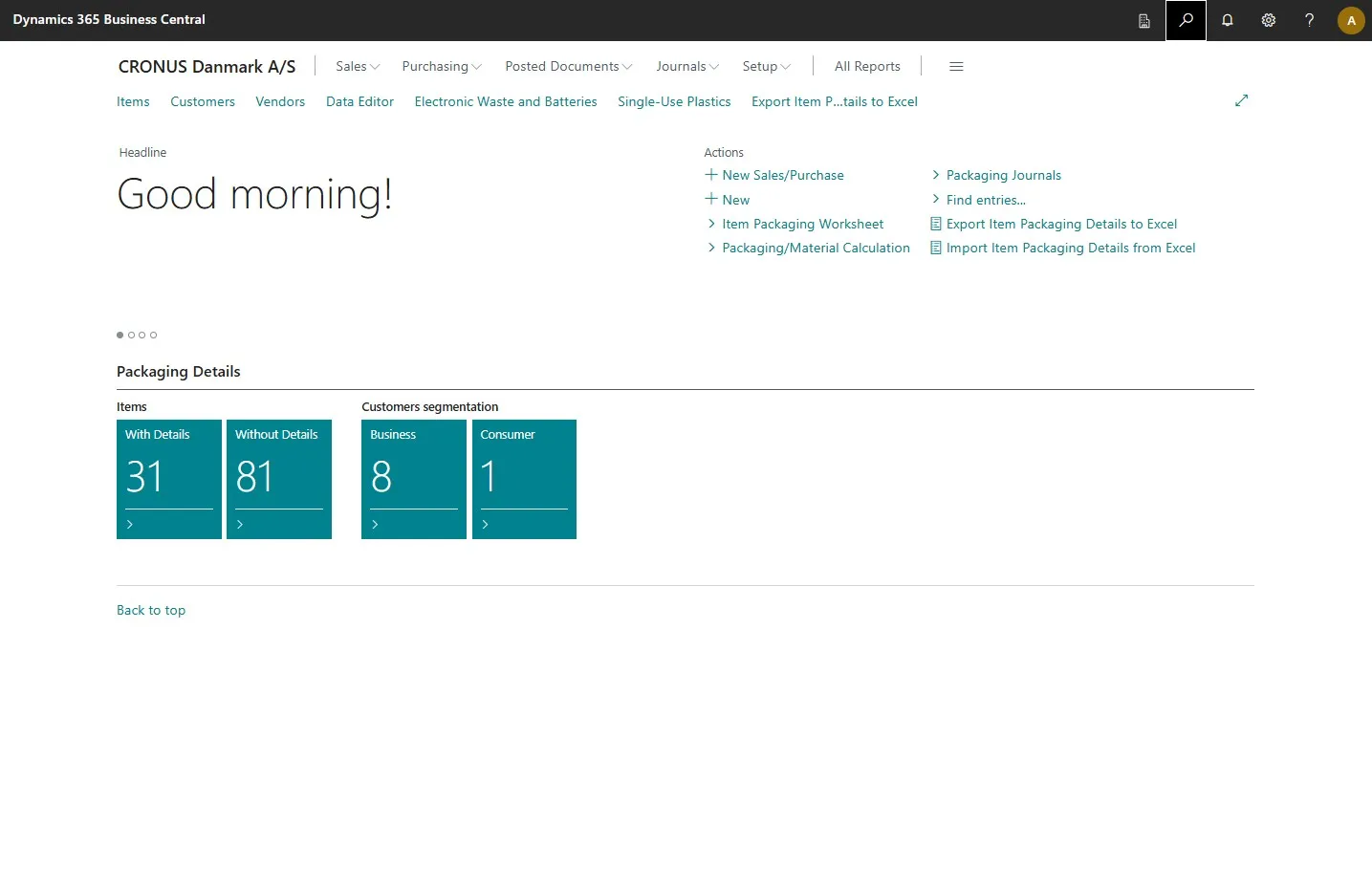
Open the search field by clicking the search icon at the top right corner or by pressing ALT + Q on your keyboard.
-
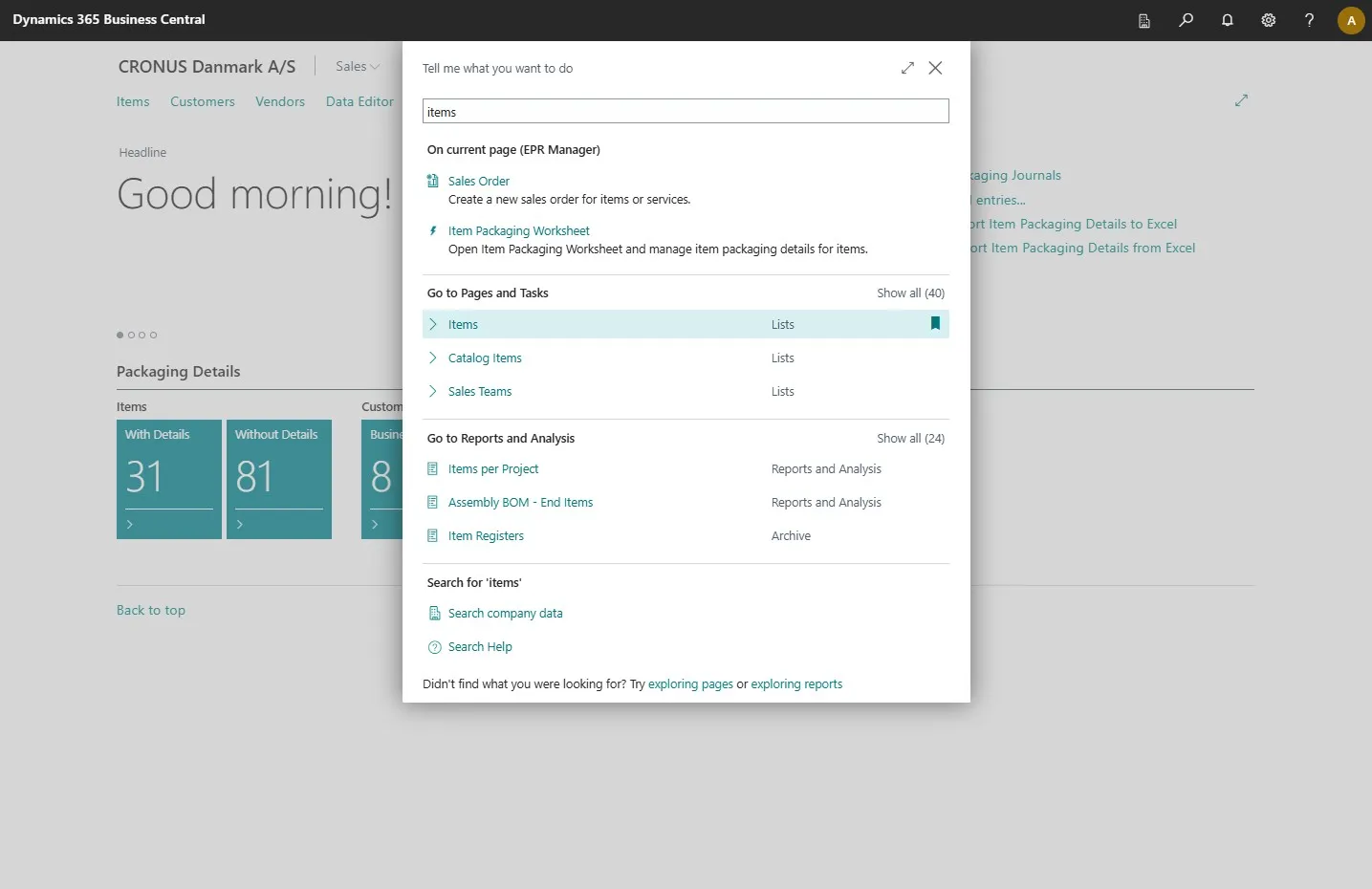
Type in “items”.
-
Select the related link.
-
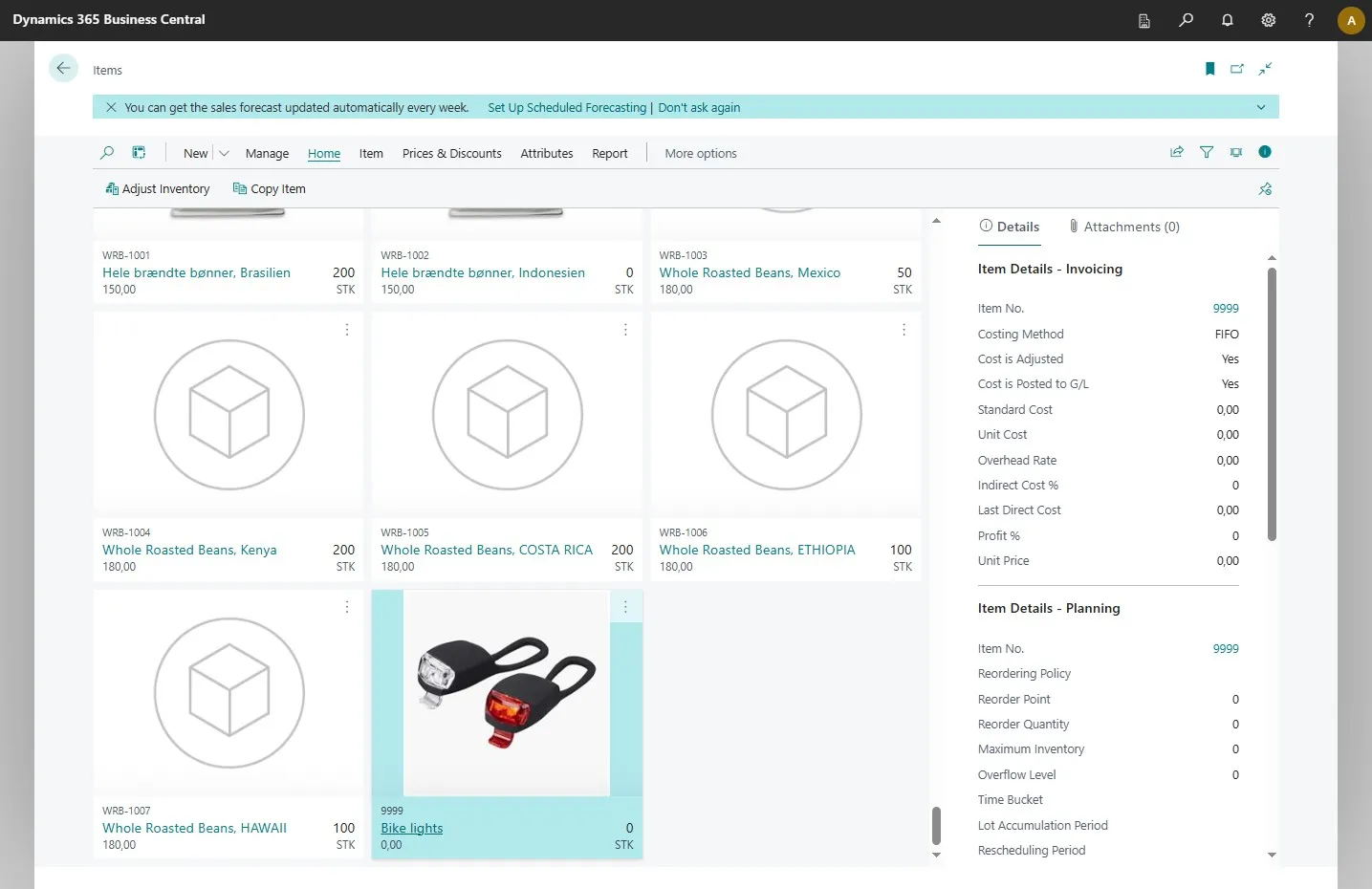
Find and select the item you want to add the details to.
-
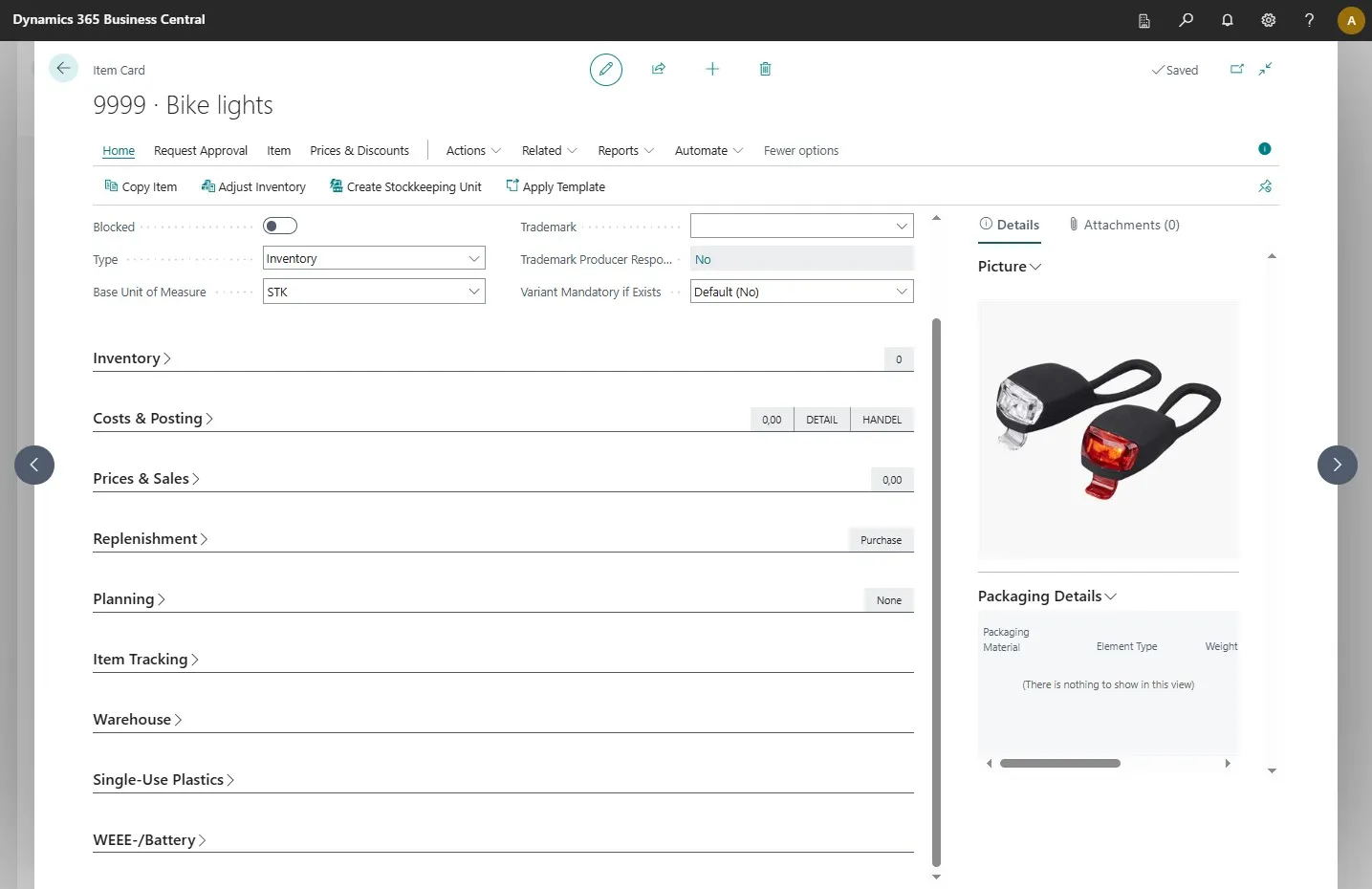
On the item card, you will now see a section called “WEEE-/Battery.” Expand it to enter the details.
-
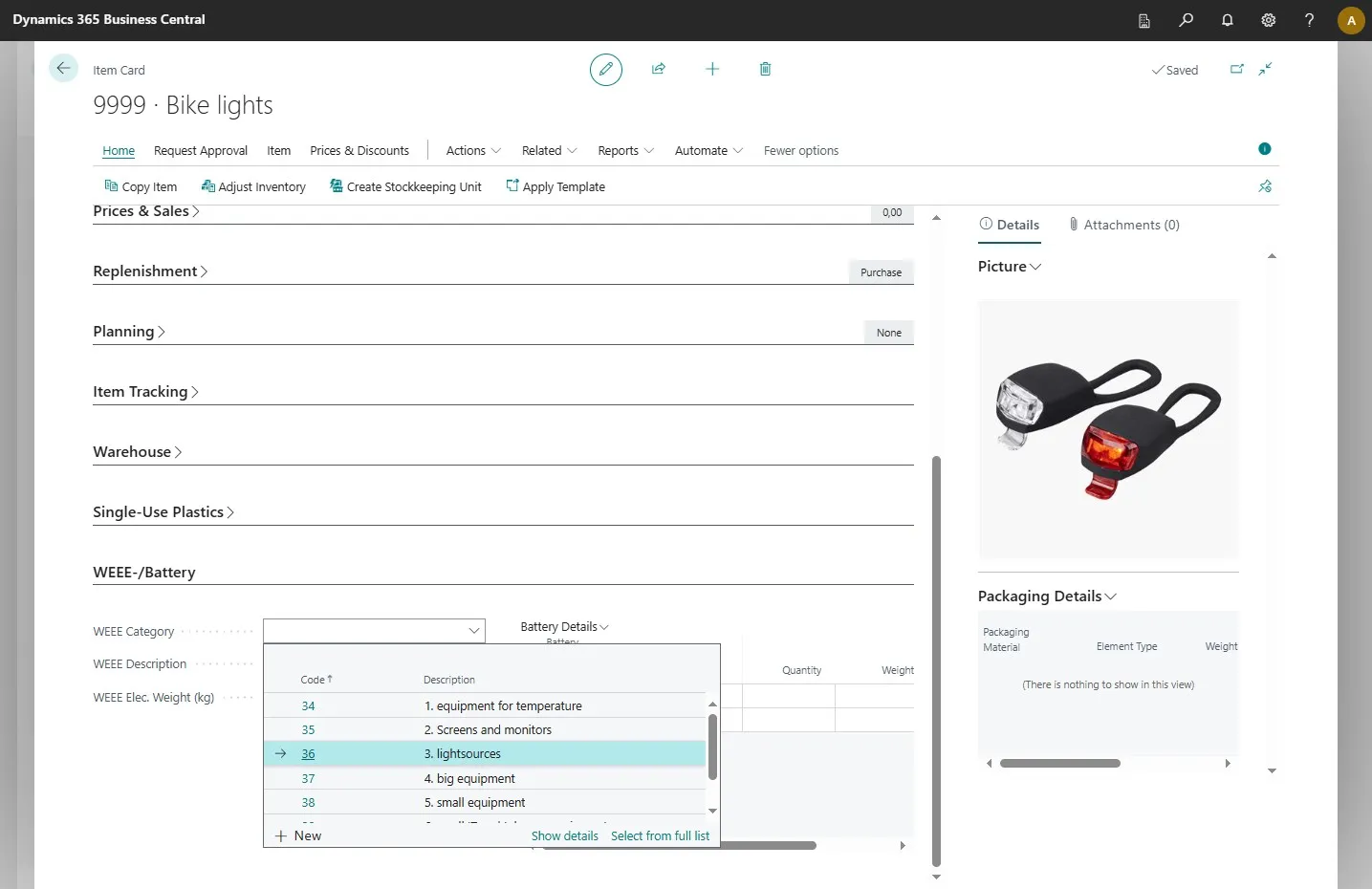
Select the WEEE category that your item belongs to.
-
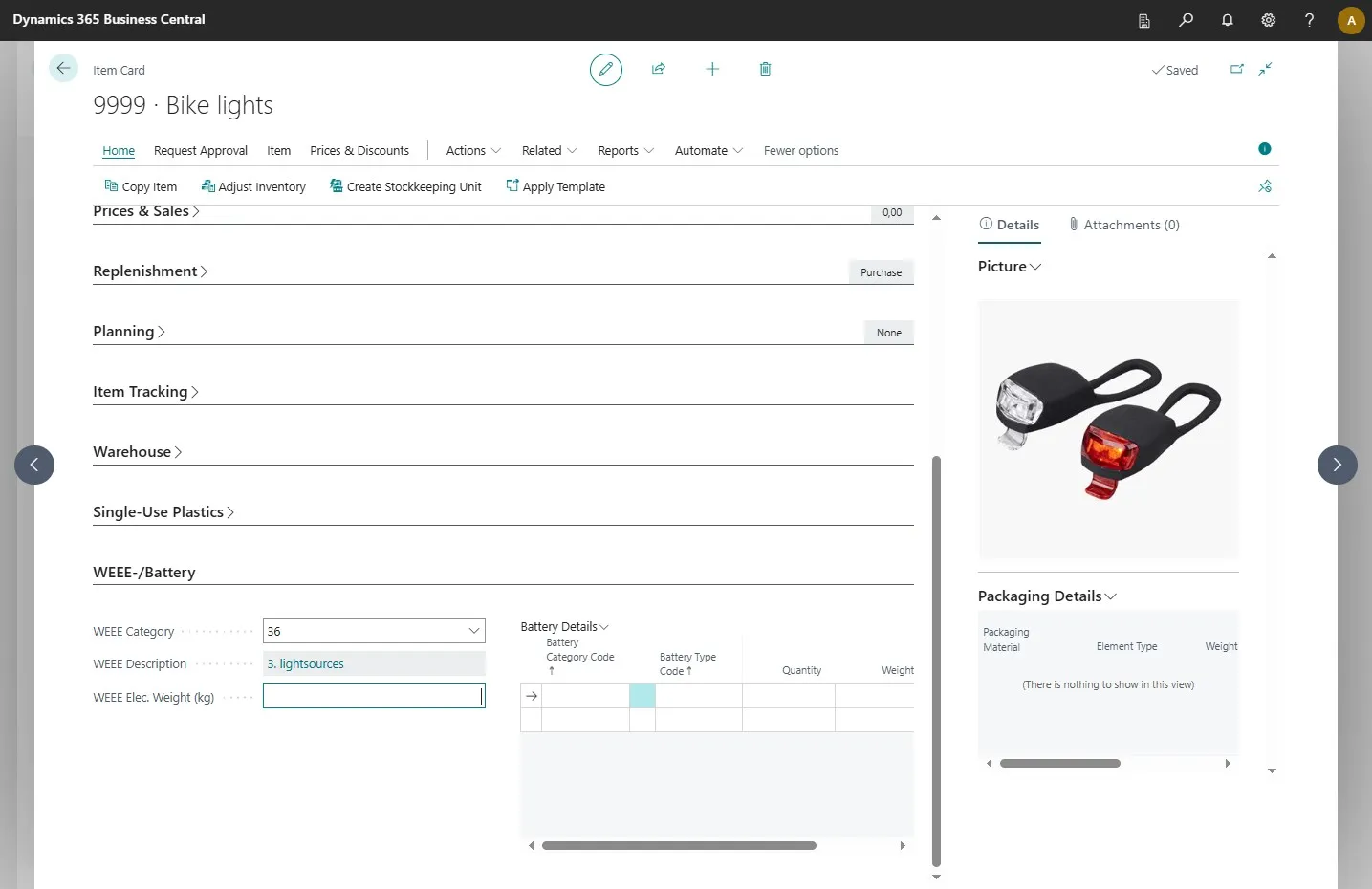
Next, enter the weight of your electronic product.
-
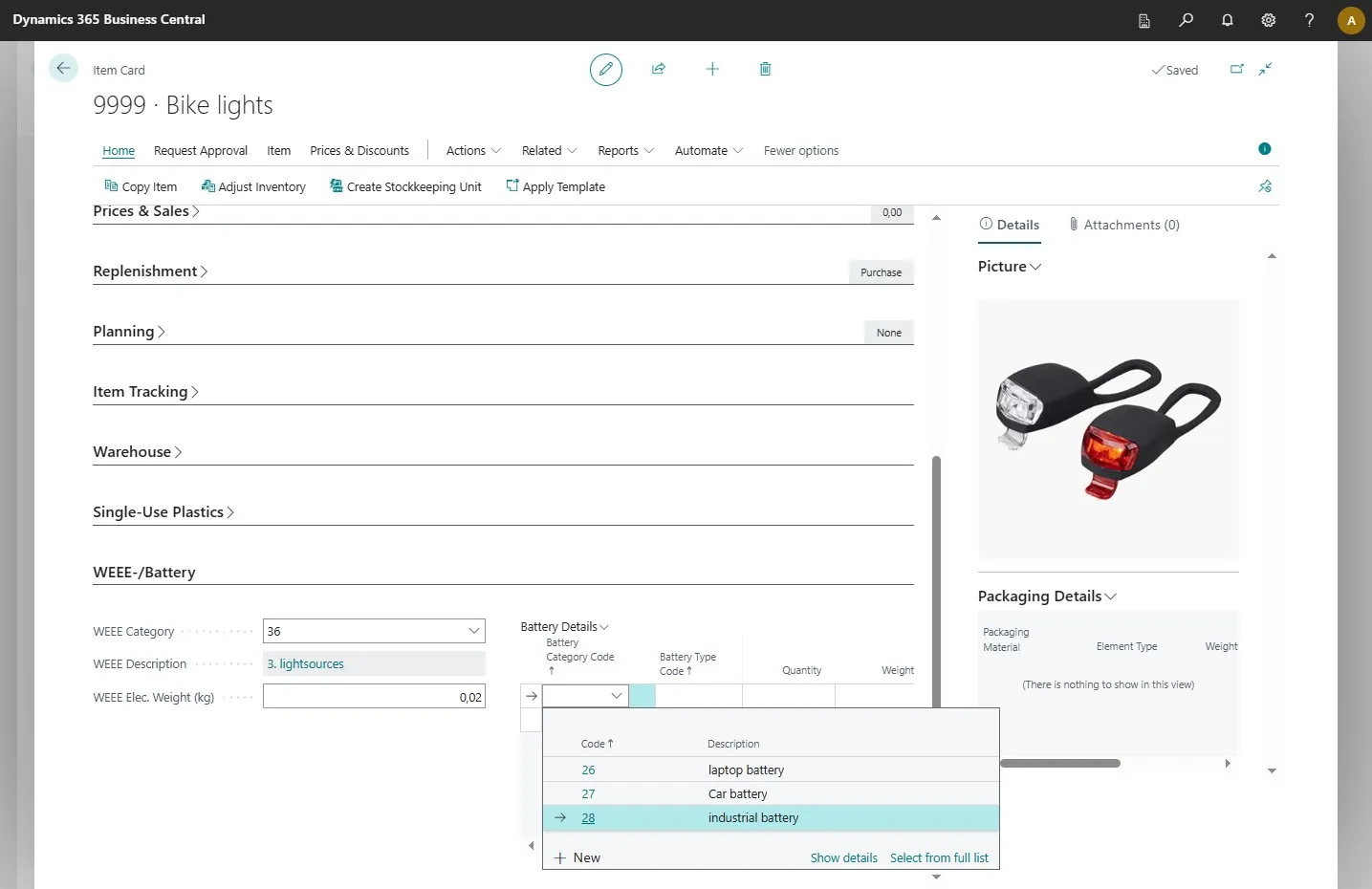
Once that’s done, go to the columns on the side and select a battery category in the first field.
-
Then, select the battery type in the next field.
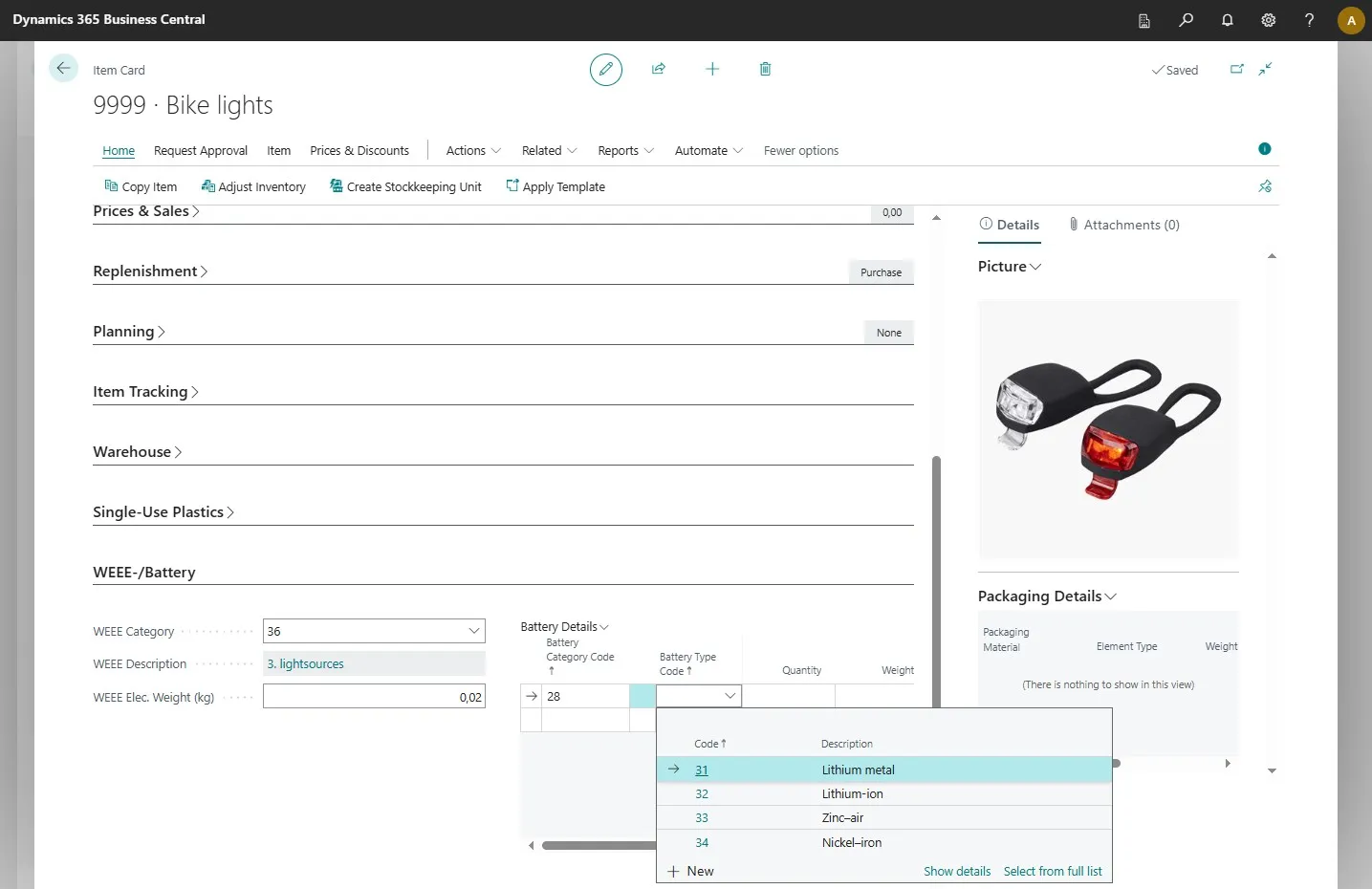
-
Enter the number of batteries that come with your product.
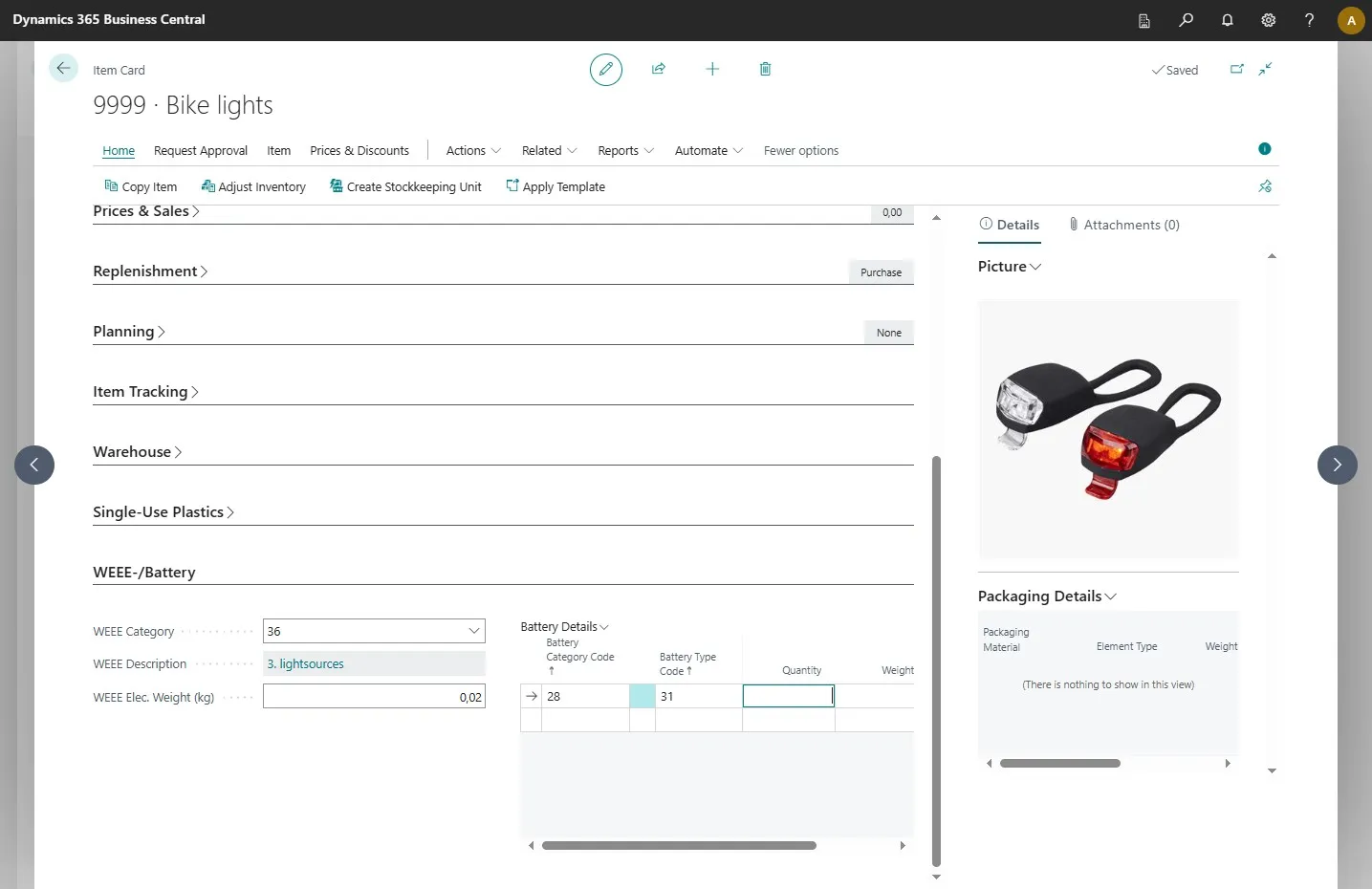
-
Enter the weight of a single battery.
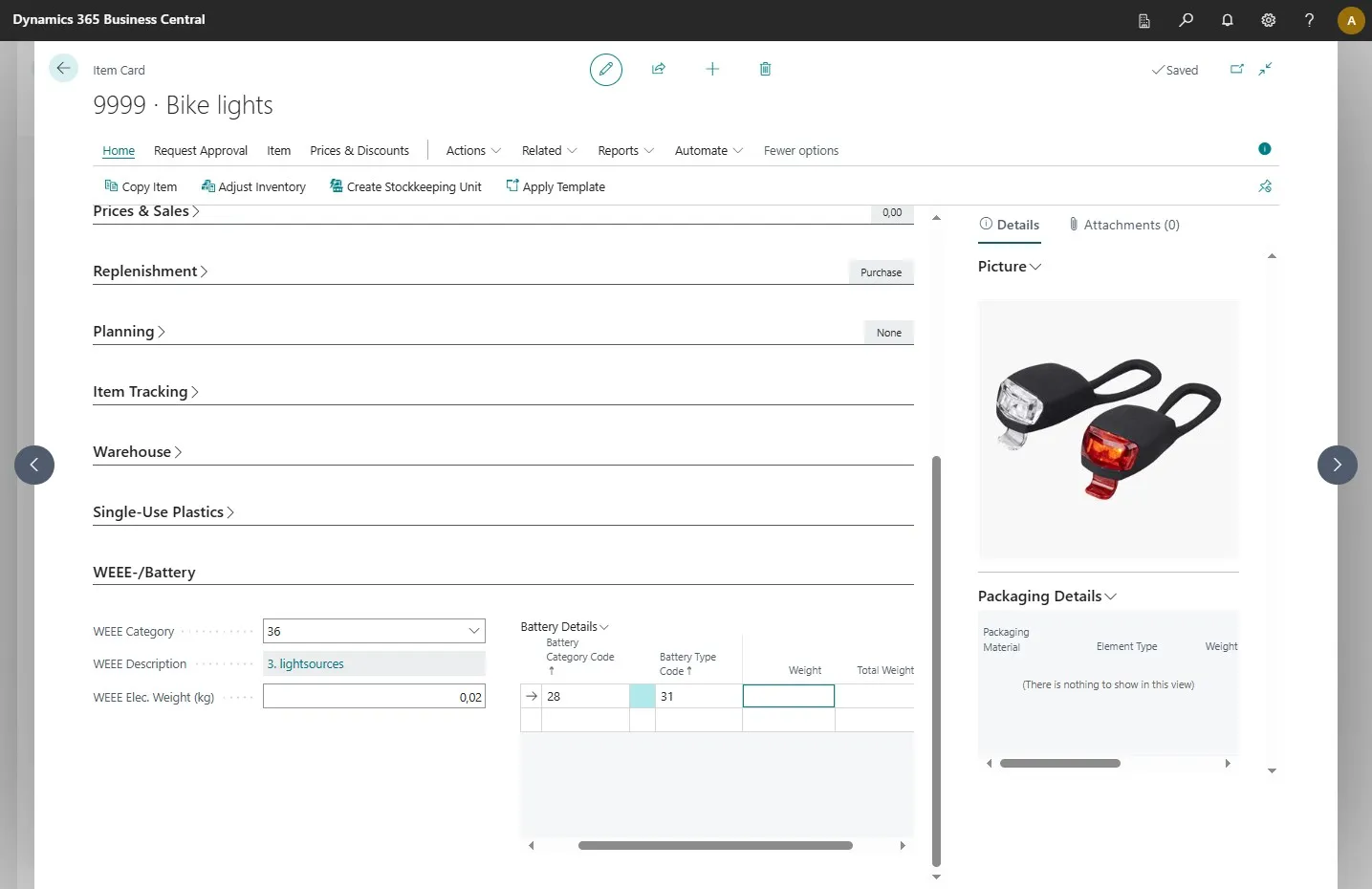
-
In the “Total Weight” field, the system will automatically calculate the total weight for your batteries.
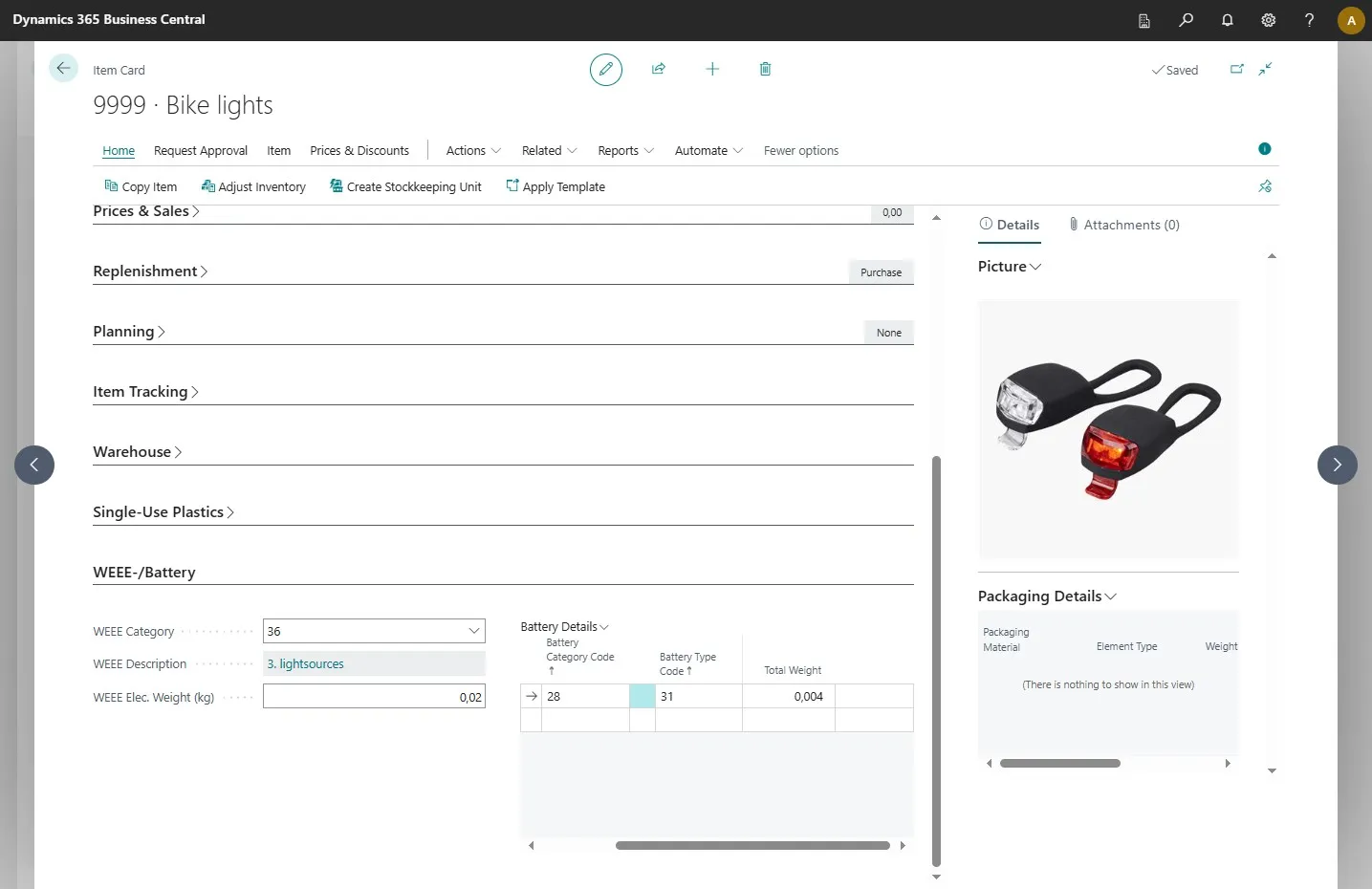
-
Once all this is set up, the WEEE and battery details will be automatically registered whenever one of these items is part of a sale.