

Exporting and Importing Excel Documents
This function allows you to export and import Excel documents with packaging details. You can export a file and send it to your vendor, have them fill out the details and send it back to you, or complete it yourself. Once the document has been enriched with your packaging details, you can import it back into the system.
This function allows you to use a standard Excel file or a more detailed one. The difference is that the standard file contains all packaging details for an item on a single line, whereas the detailed file contains a separate line for each packaging detail. This means that an item can have its packaging details spread across multiple lines. The detailed file also allows you to include additional information such as destination, sorting, and similar attributes.
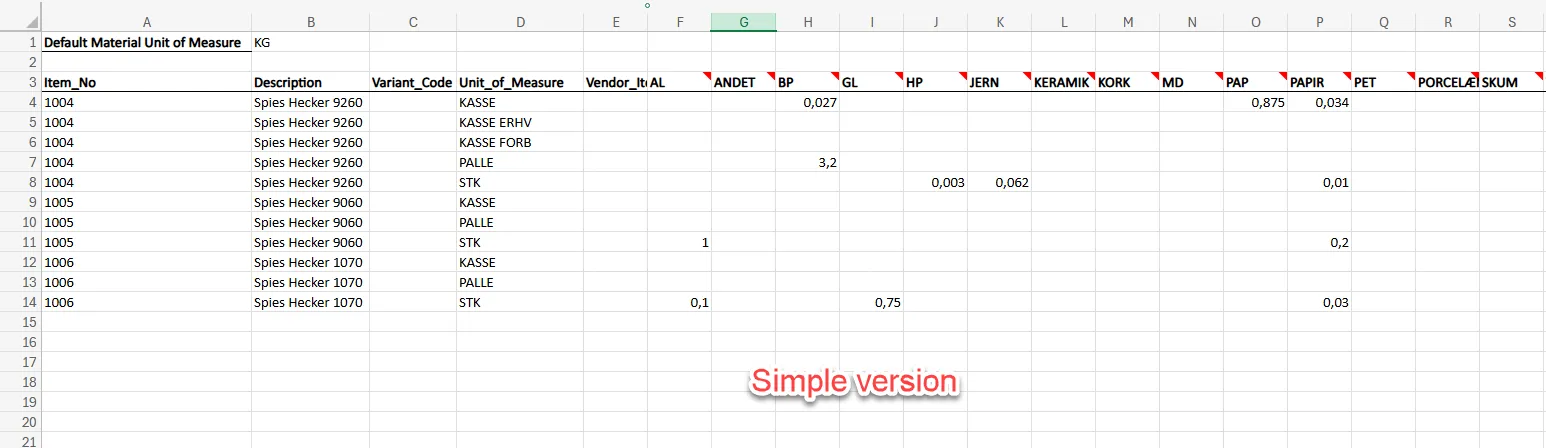
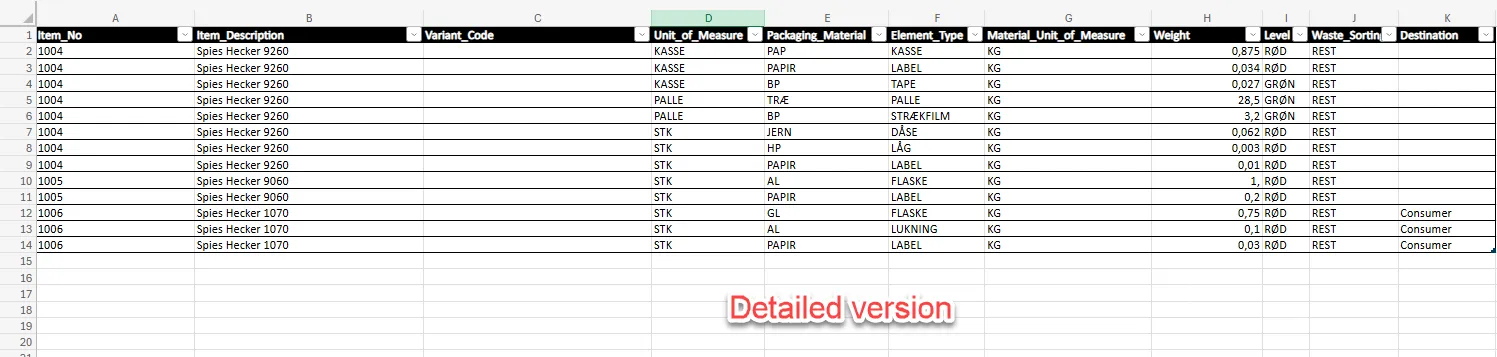
Please note that this function only allows you to add details into the system, not edit them. This means that if you export a file, enrich it, and import it, but later want to change some details, you cannot simply import a new document. Doing so will only add the new details on top of the existing ones rather than updating them.
Export Packaging details:
Section titled “Export Packaging details:”- One the Administration of Extended Producer Responsibility - Packaging role center, move your mouse to the Export Item Packaging Deltails to Excel.
- Select the arrow next to it.
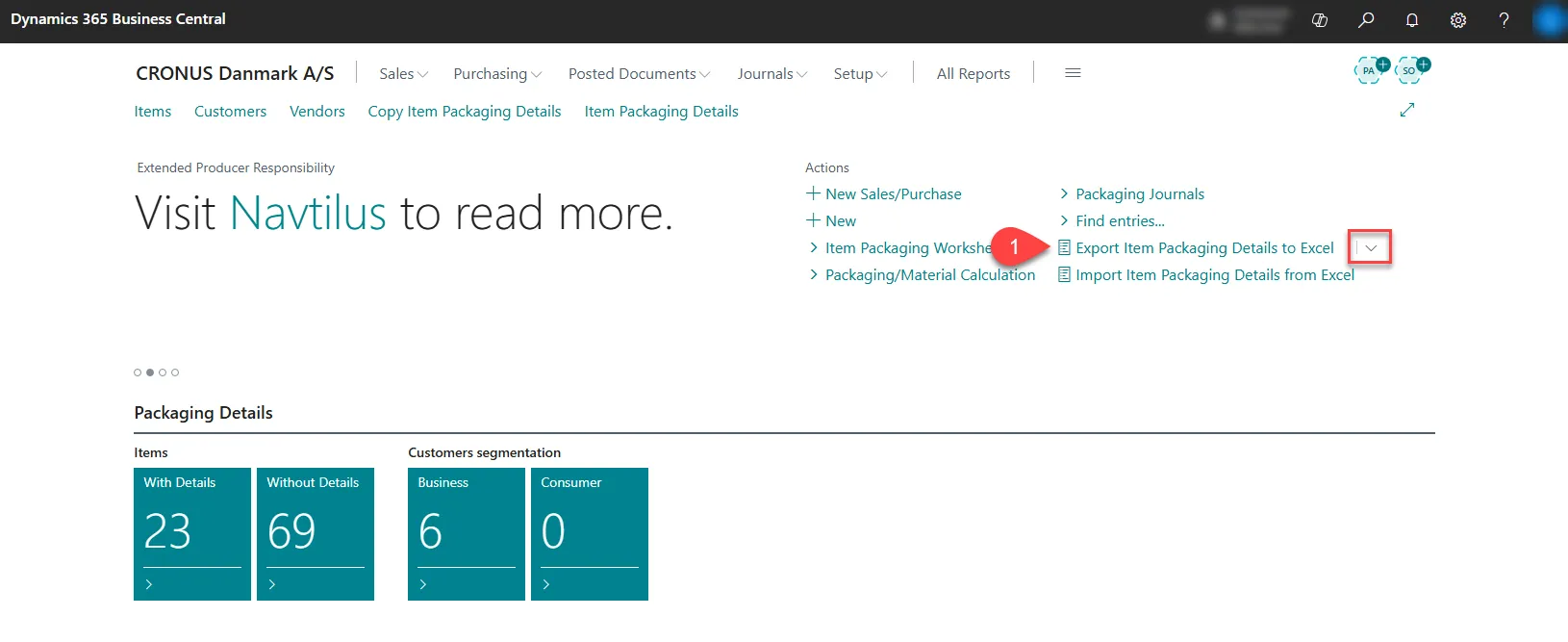
- Select which version of the document you wish to export.
- Enter the filters you wish to use.
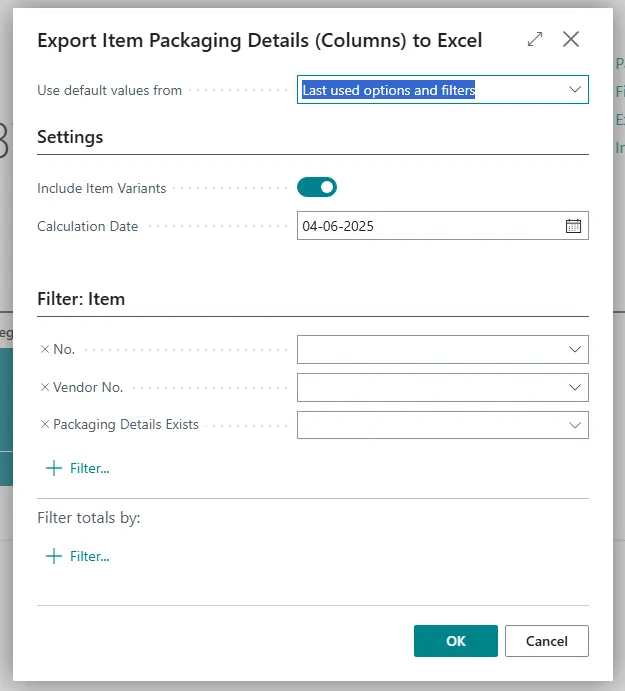
- Select OK.
Import Packaging details:
Section titled “Import Packaging details:”- One the Administration of Extended Producer Responsibility - Packaging role center, move your mouse to the Import Item Packaging Deltails from Excel.
- Select the arrow next to it.
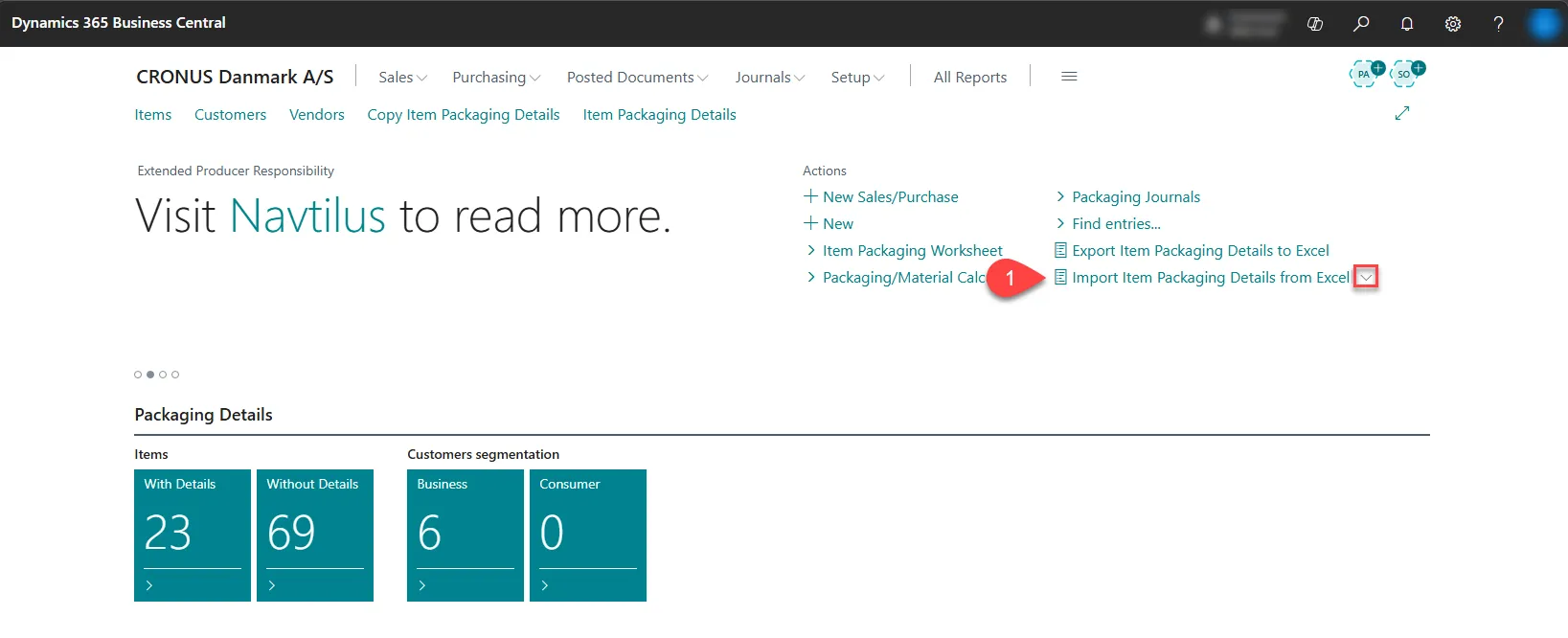
- Select which version of the document you wish to import.
- Select the three dots next to the Import File field.
- Select the box in the middle to open the look up at your computer or simply drag and drop the file into the box.
- Select OK.