

Add Non-working Days To The Calendar
This guide shows how to quickly and easily set up your company’s holidays in Business Central.
-
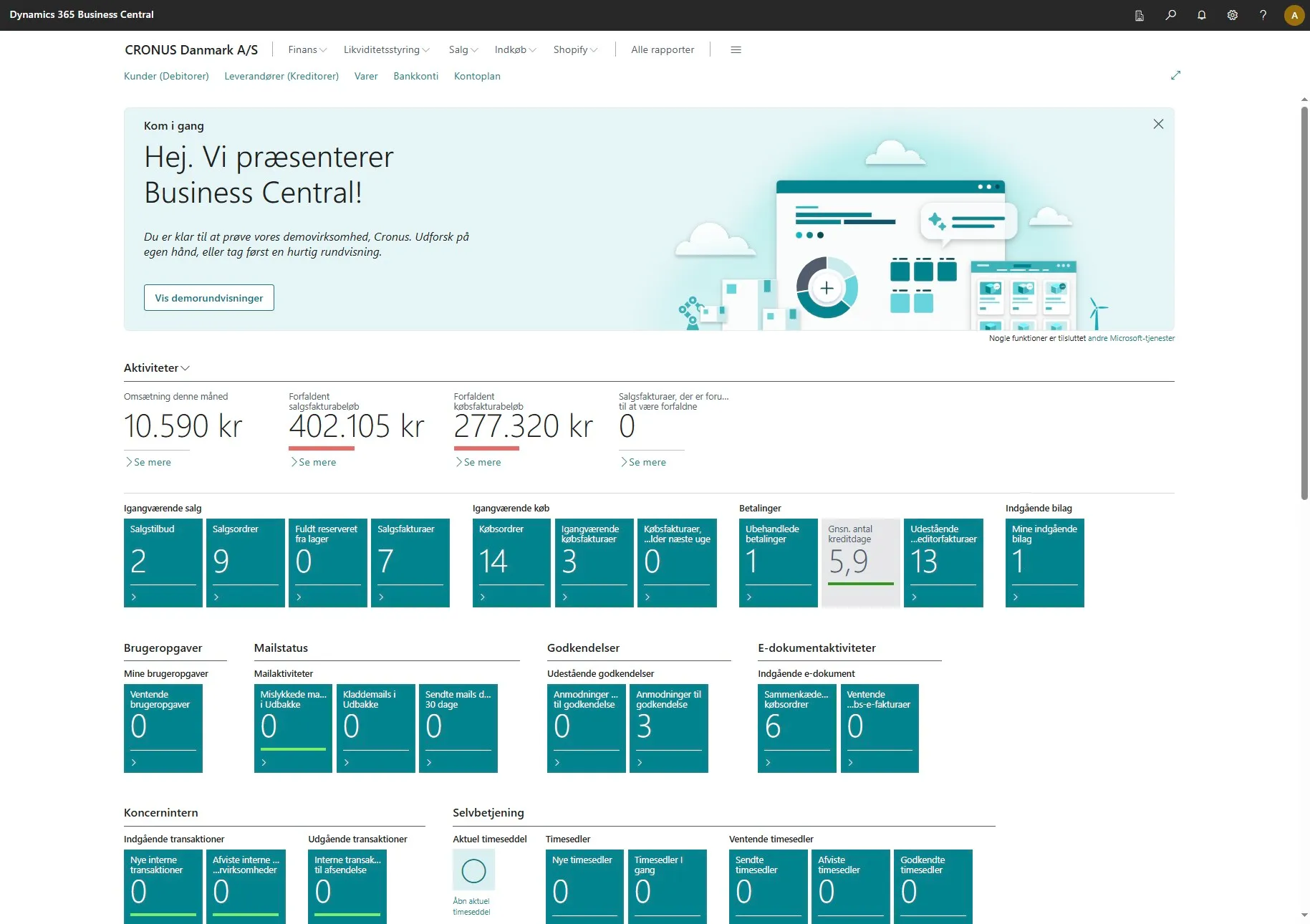
Open your Business Central.
-
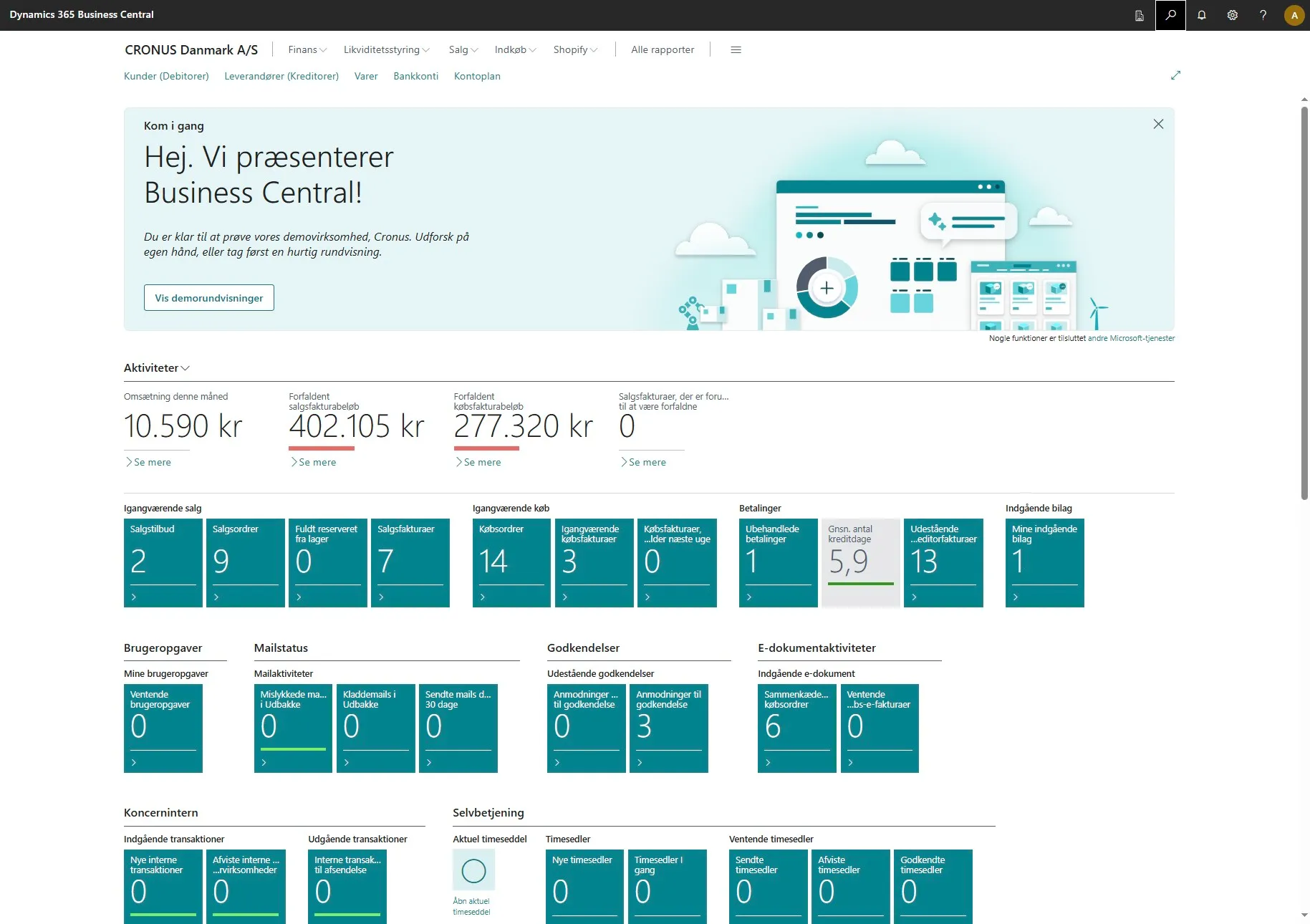
Use the search field by clicking on the magnifying glass or by using the shortcut ALT + Q.
-
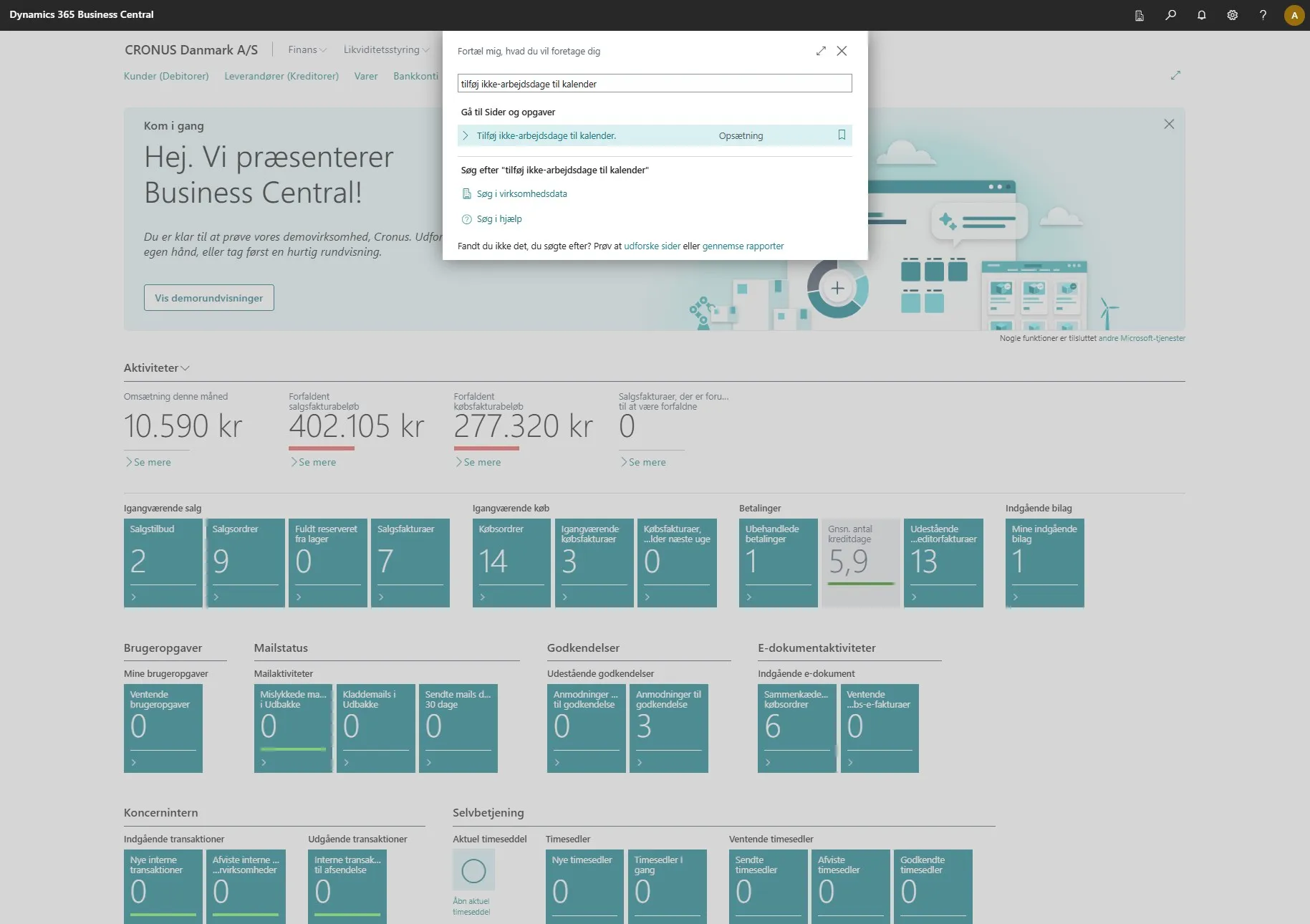
Enter “add non-working days to calendar” in the search field.
-
Click on the related link.
-
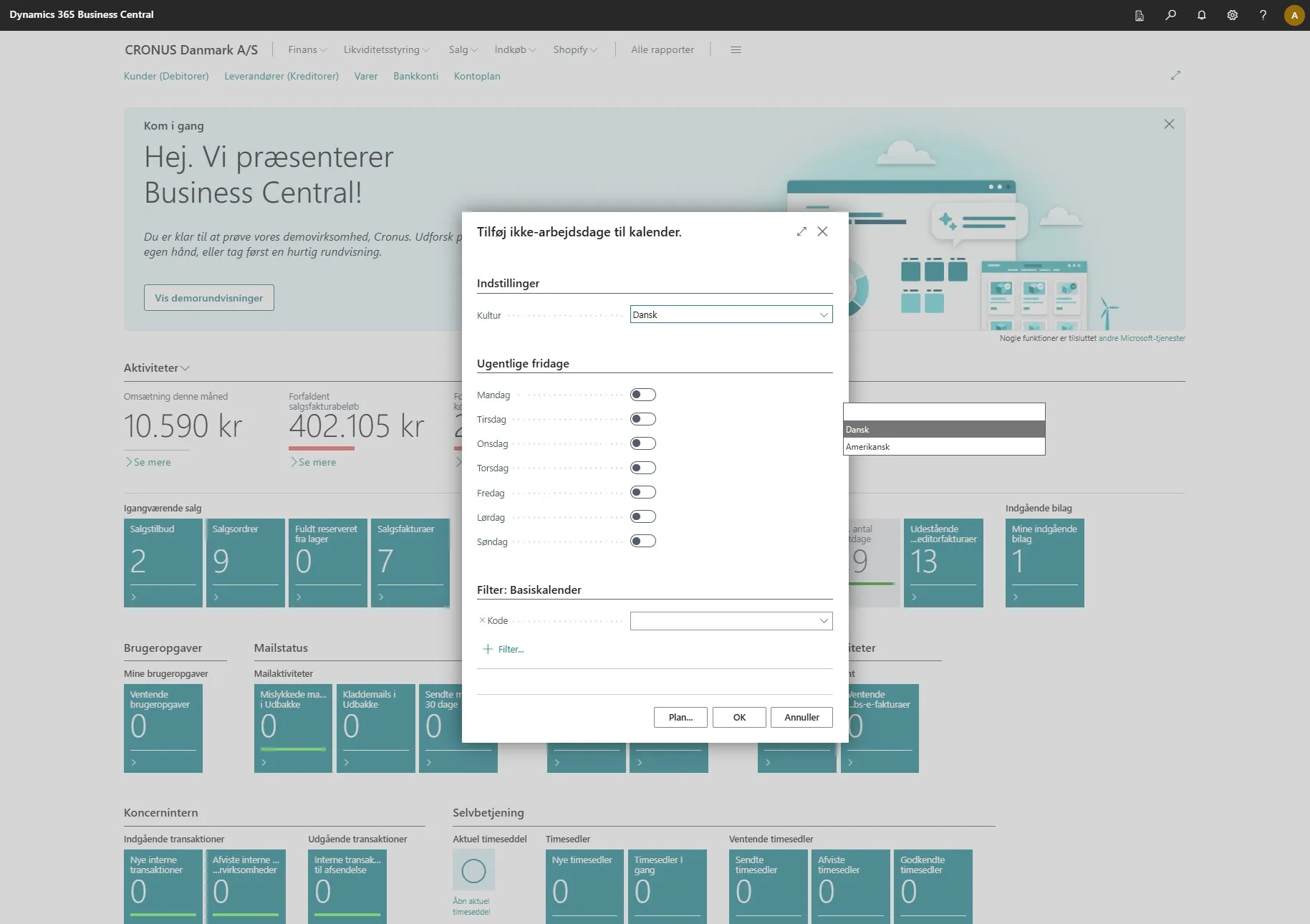
The first thing you can configure is the culture selection. The function is based on either a standard Danish or American calendar and automatically adds the most common holidays to your calendar.
-
Next, you can select the weekly days when your office is closed.
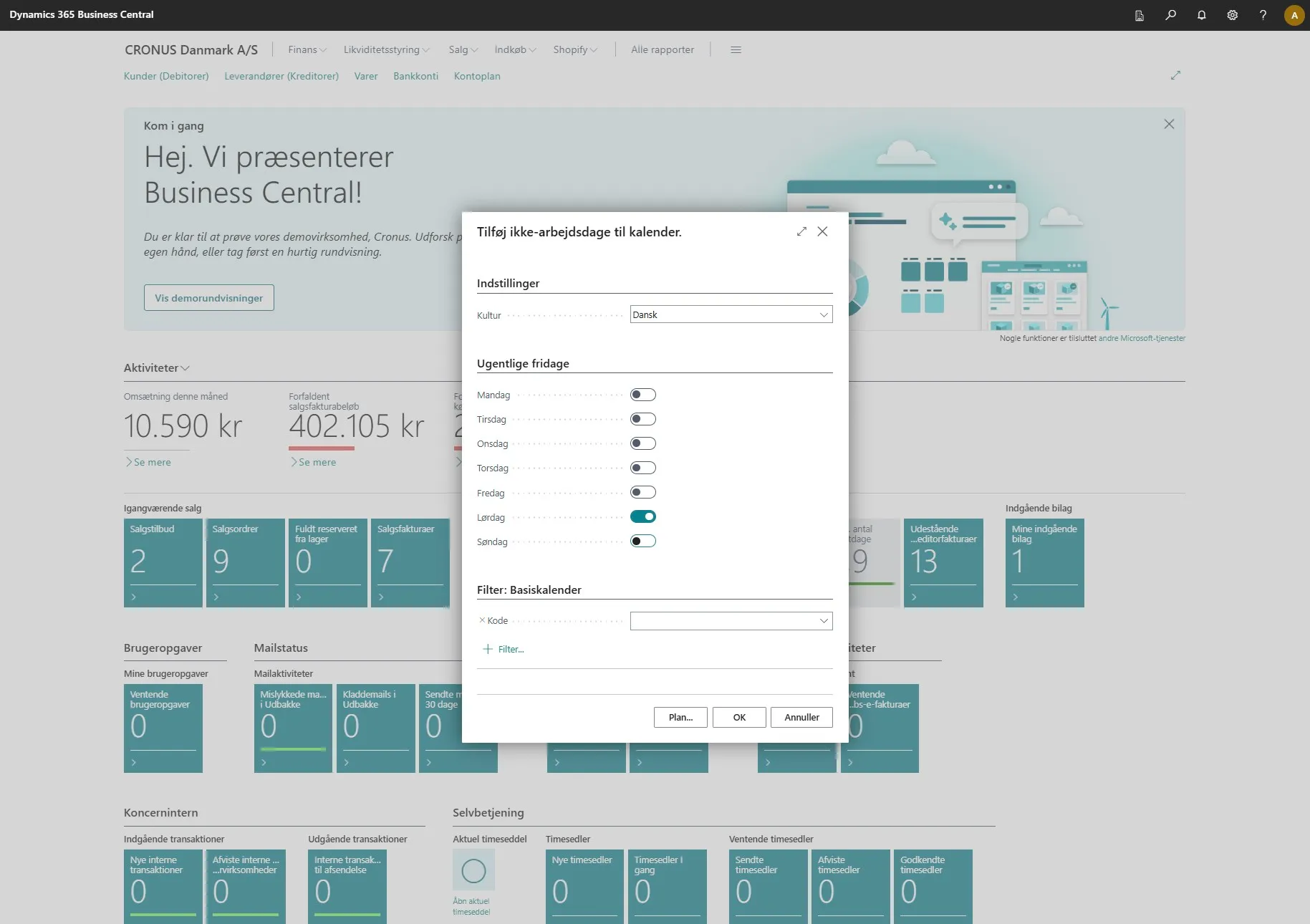
-
Then click on the code field to select the calendar you want to add it to.
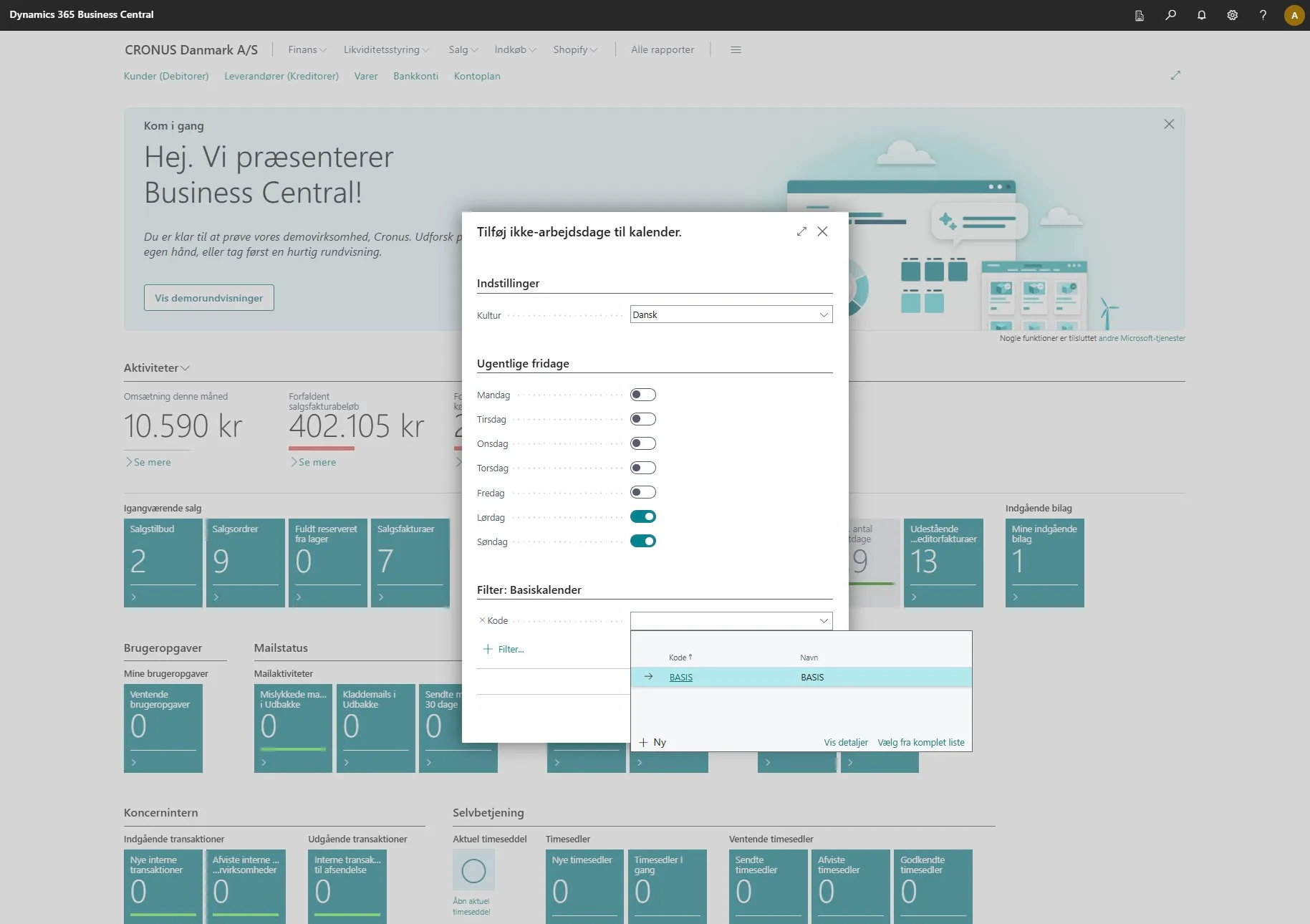
-
When you are done, click “OK”.
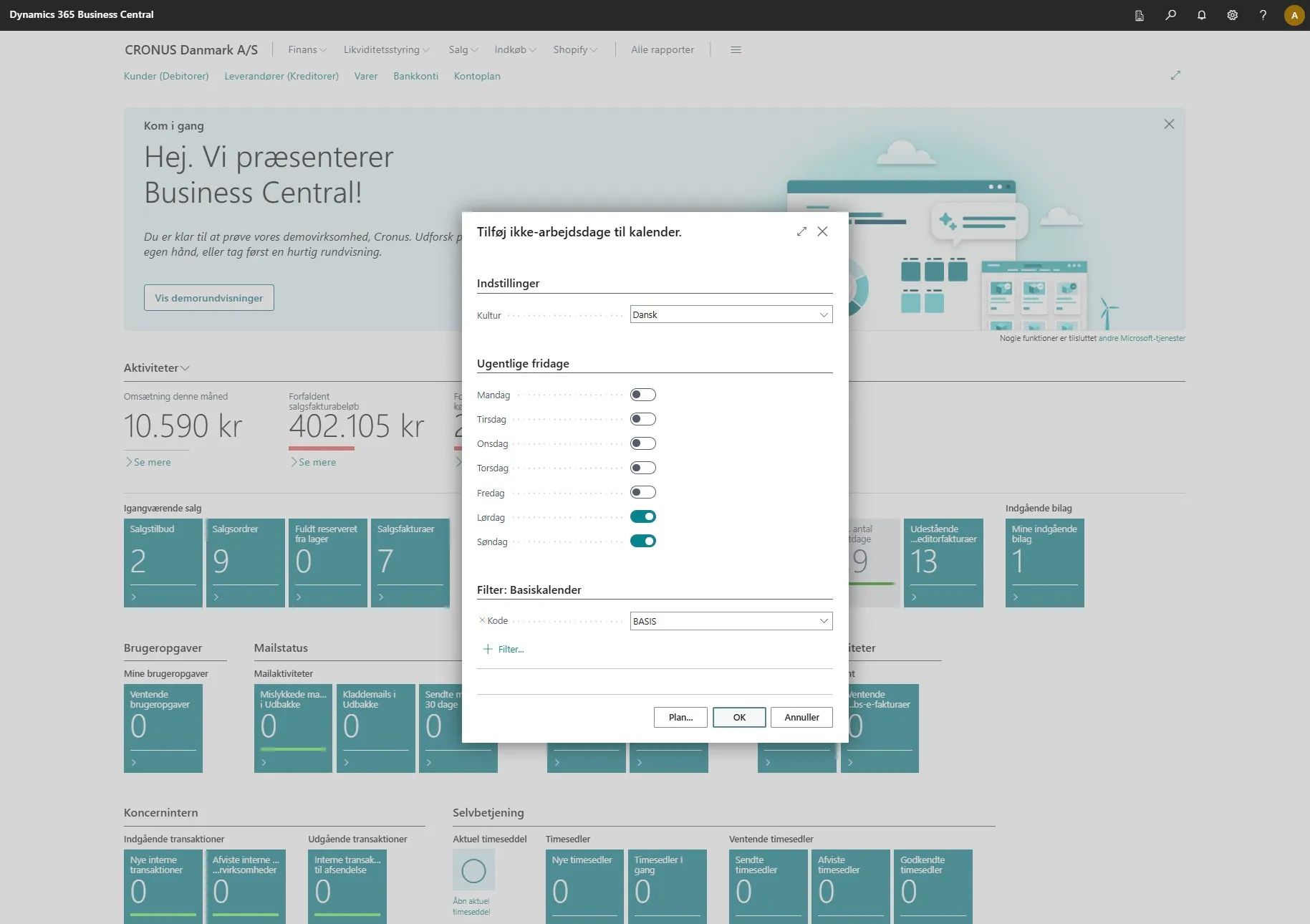
-
Your system has now been set up with the holidays you selected.