

G/L Account No. on VAT Entries
This feature adds several new columns to your VAT entries, making it easier to link G/L account numbers directly to each VAT line.
This feature adds the G/L Account No. column to your VAT entries. The feature exists by default in Business Central, but is hidden behind the system and requires technical knowledge to enable it via coding. Therefore, we have chosen to make it available to everyone.
-
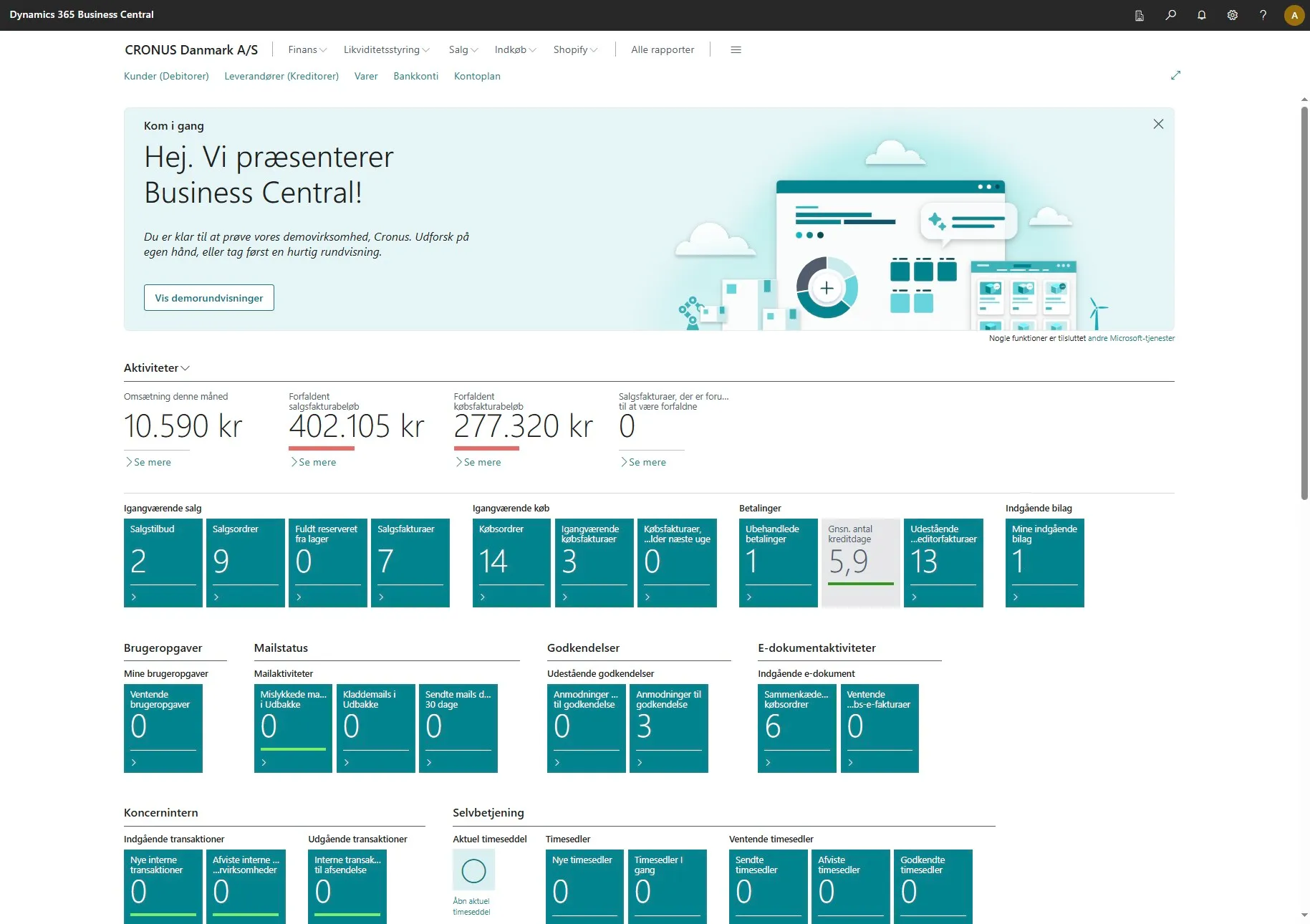
Open your Business Central.
-
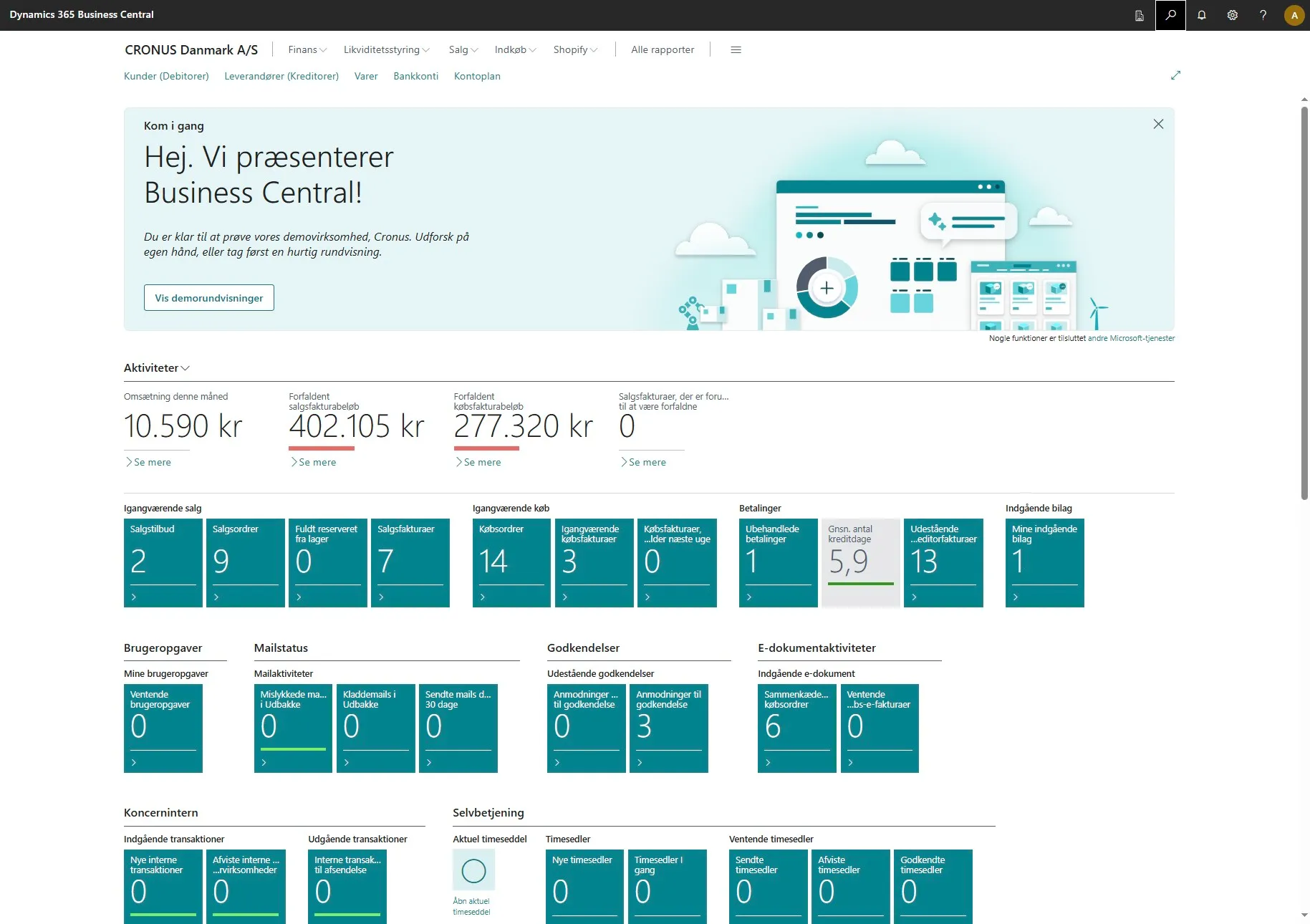
Use the search field by clicking on the magnifying glass or by using the shortcut ALT + Q.
-
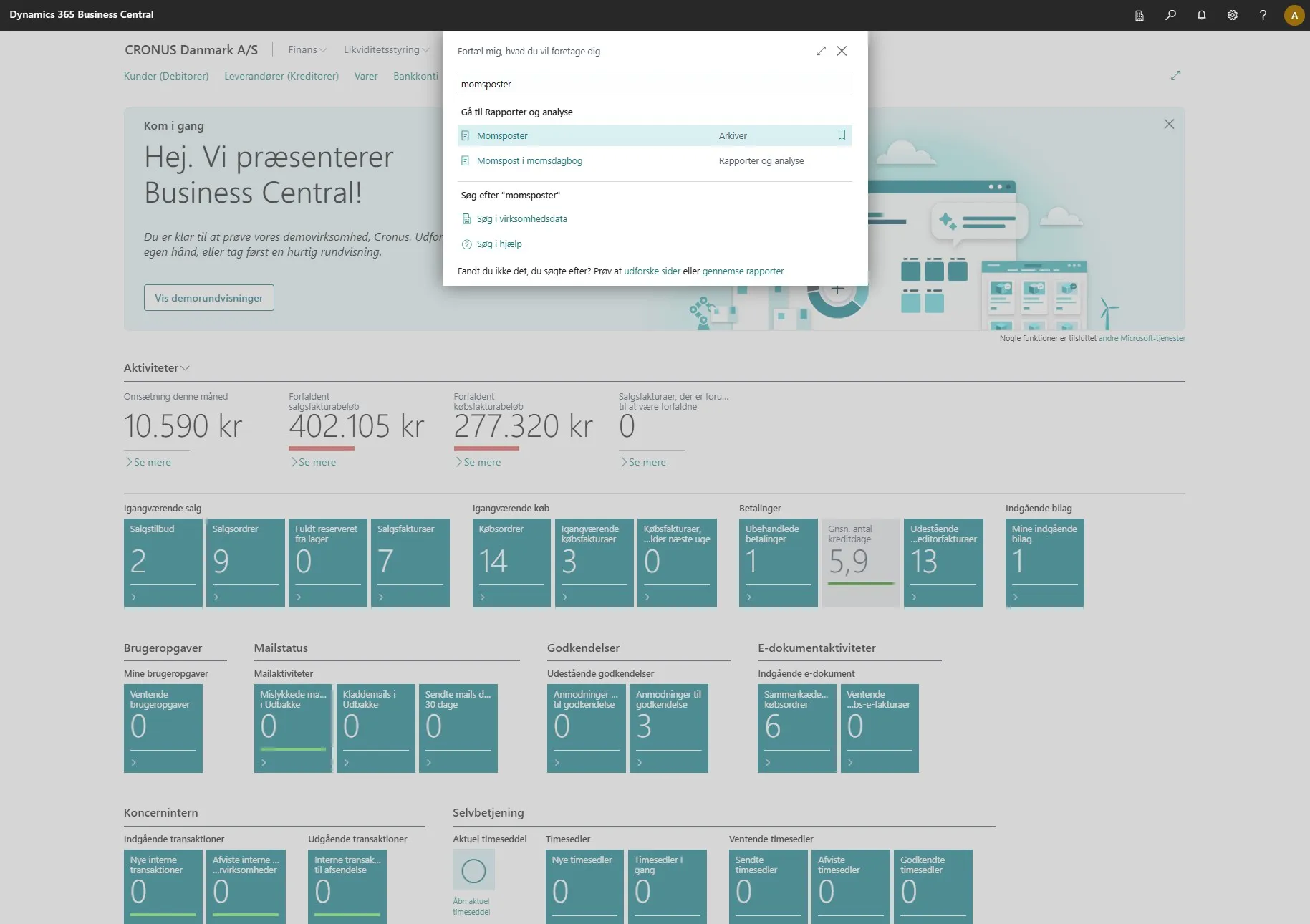
Enter “VAT entries” in the search field.
-
Select the related link.
-
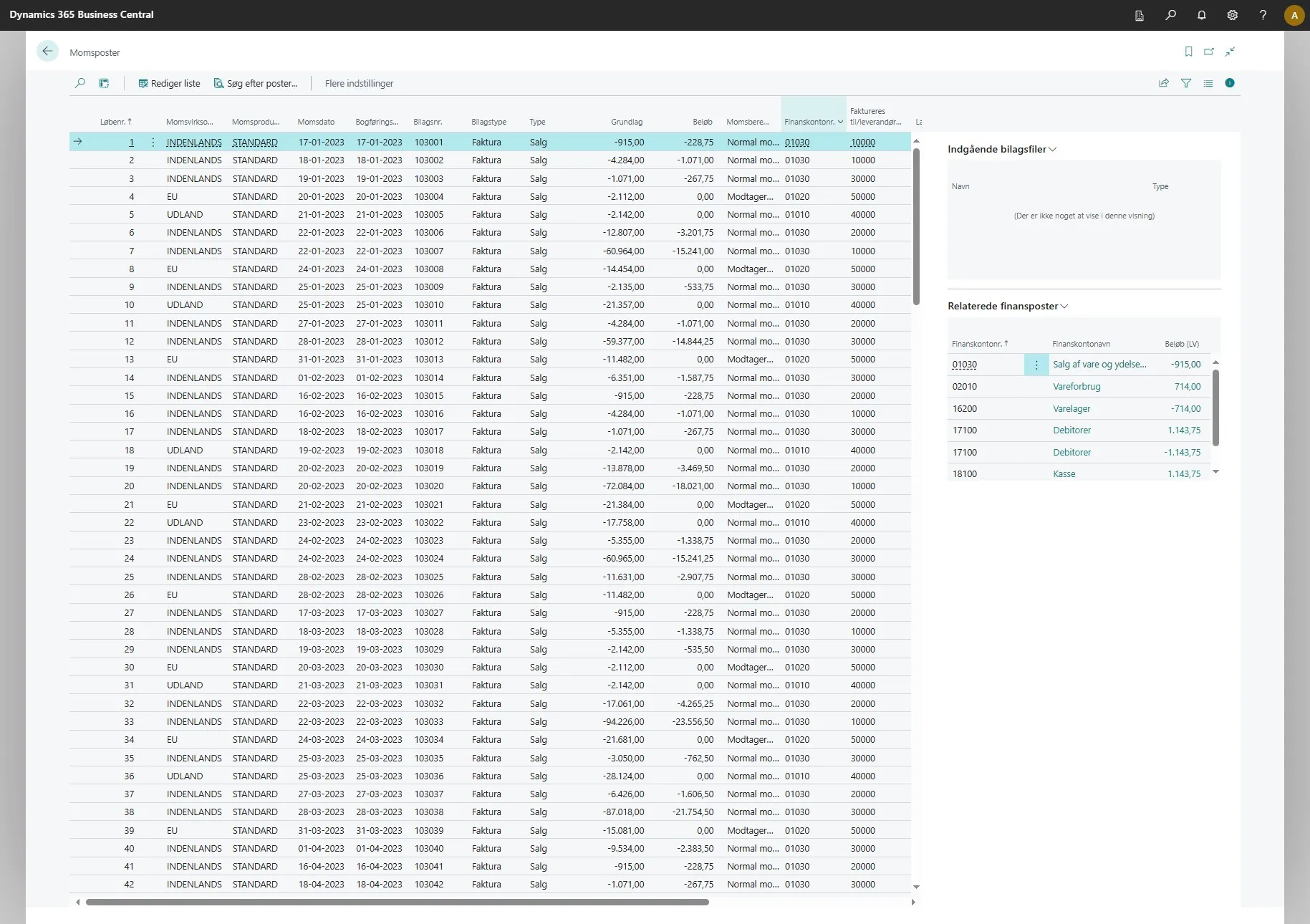
Here you can now see a column called “G/L Account No.”. The first time you see this column, it is empty.
-
This can be resolved by clicking on “More options” in the ribbon.
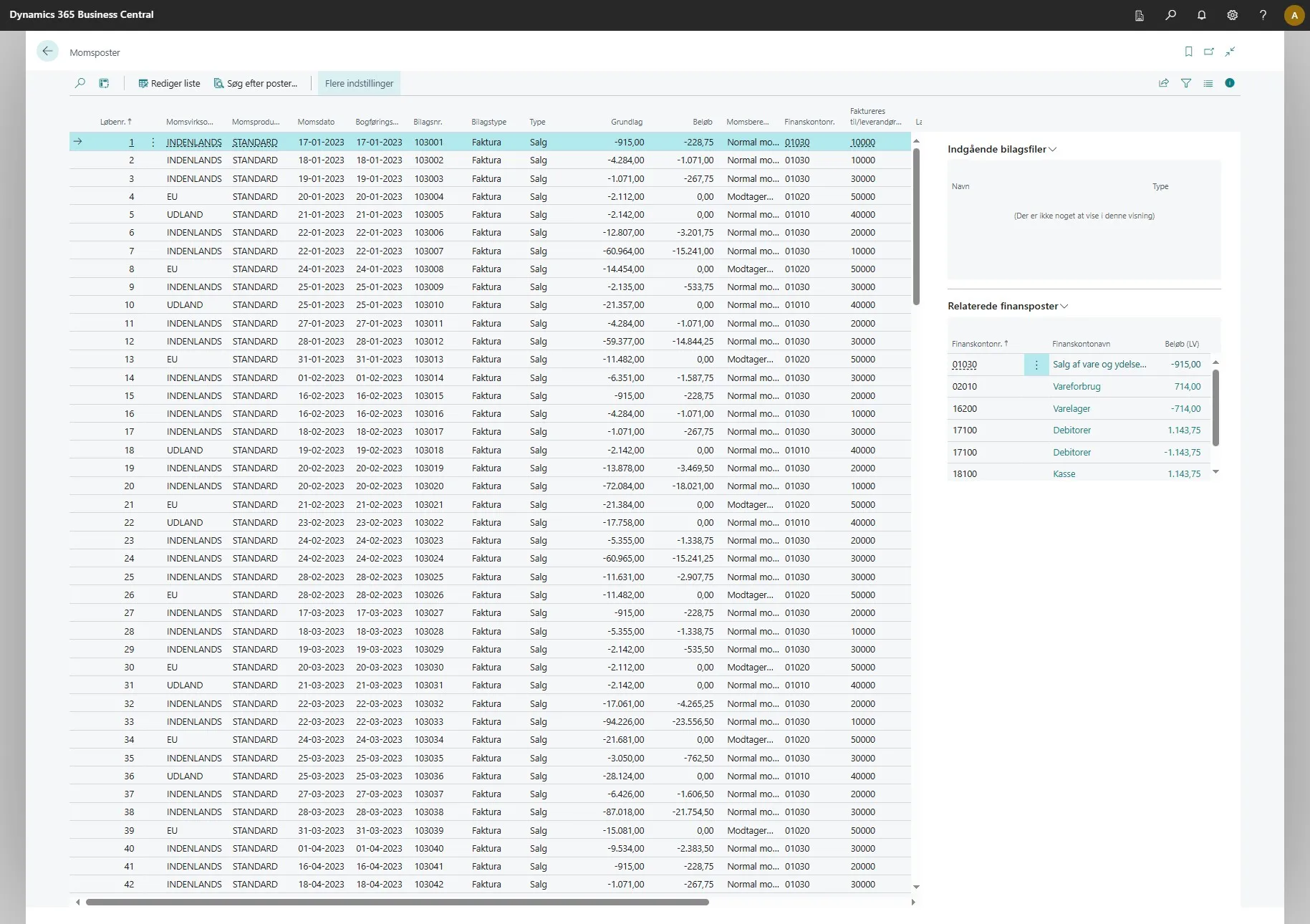
-
Then click on “Actions”.
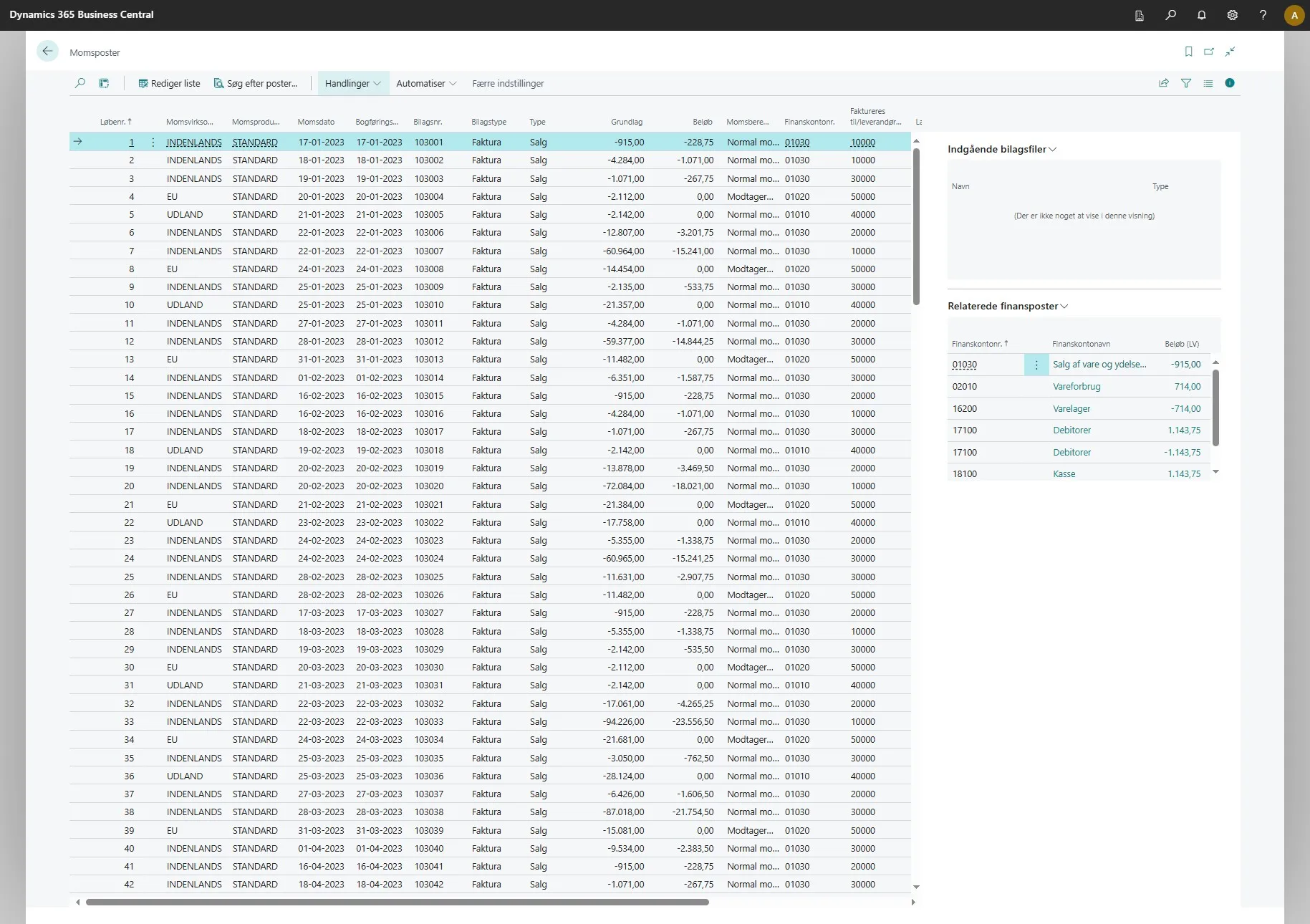
-
Click on “Set G/L Account No.”, after which the system retrieves the numbers for the column.
- Please note that the first time it may take a while, as the system needs to retrieve data for all entries. After that, the numbers are saved, so you only need to perform steps 6 to 8 when there are new entries for which you want to see the G/L account number. We recommend doing this regularly at a fixed interval, e.g., once a week.
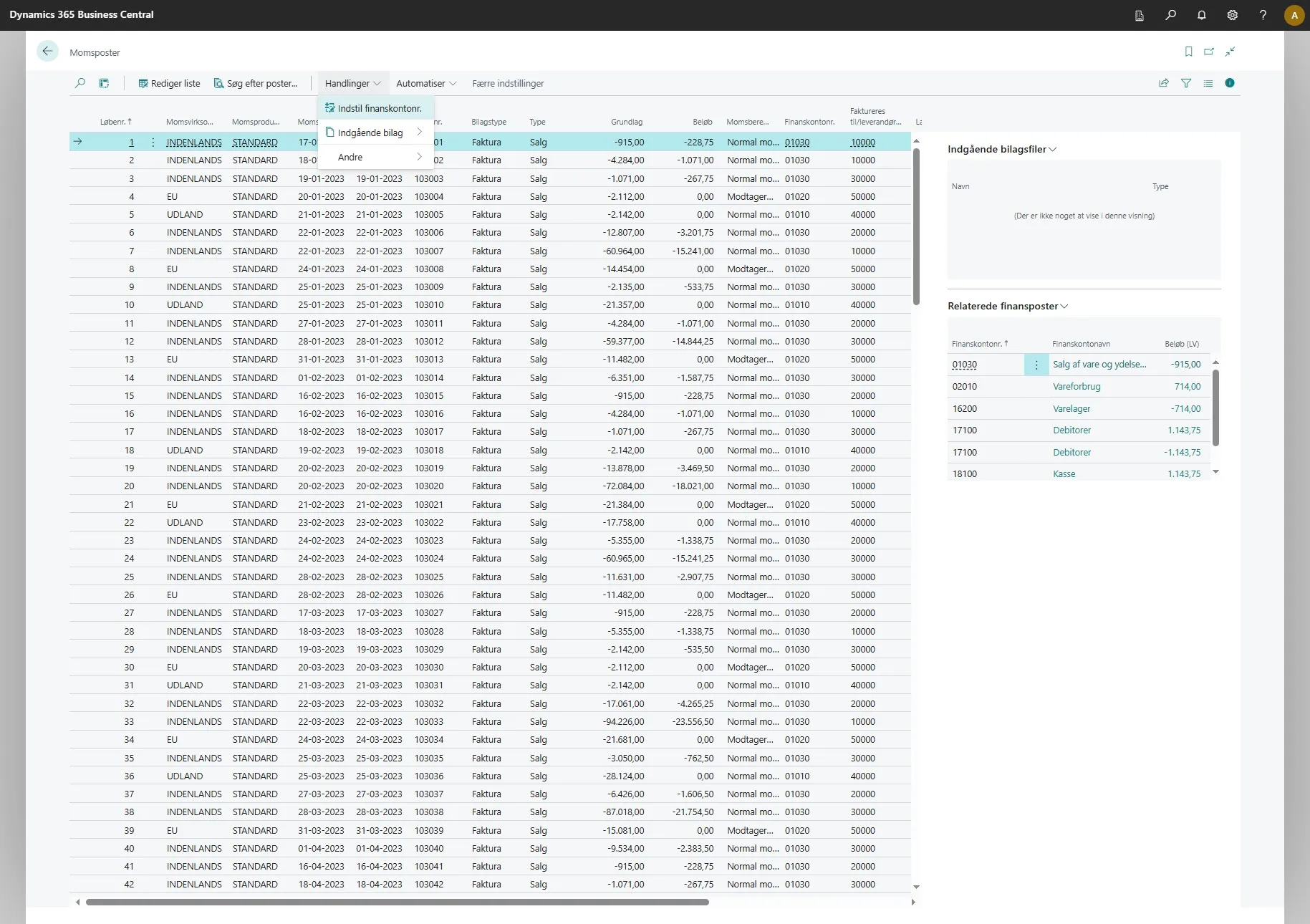
- Please note that the first time it may take a while, as the system needs to retrieve data for all entries. After that, the numbers are saved, so you only need to perform steps 6 to 8 when there are new entries for which you want to see the G/L account number. We recommend doing this regularly at a fixed interval, e.g., once a week.
Analysis Mode
Section titled “Analysis Mode”Note: This data can also be used in the analysis mode feature directly within Business Central.
-
Click on the “Analysis mode” icon in the upper left corner.
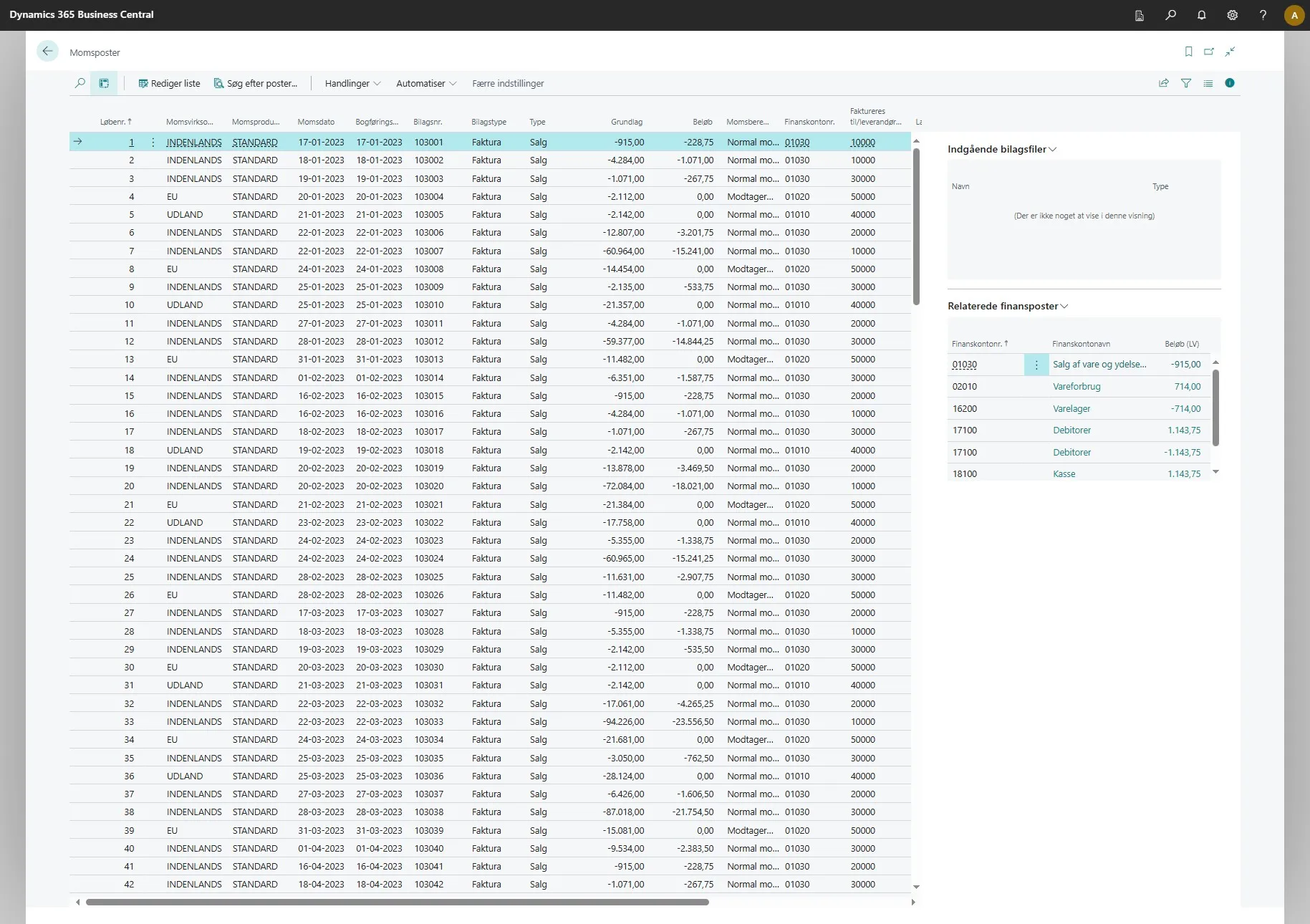
-
Enable “pivot mode”.
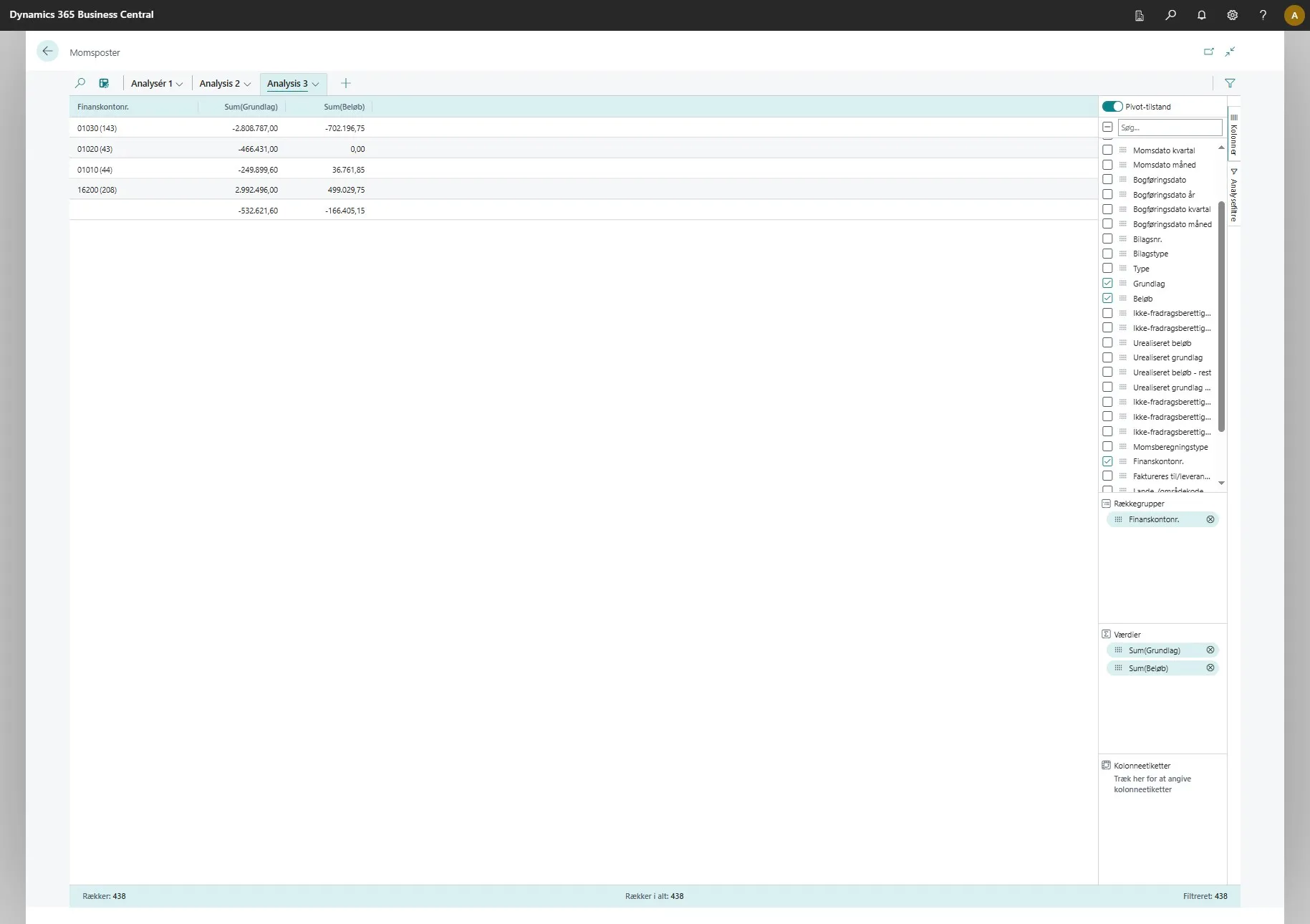
-
Set your filters as desired.
-
After that, you can see the figures directly here.