Buy Apps for Business Central on Microsoft Marketplace
-
Go to Marketplace
-
Click on “Sign in” in the top right corner to log in with your work email.
-
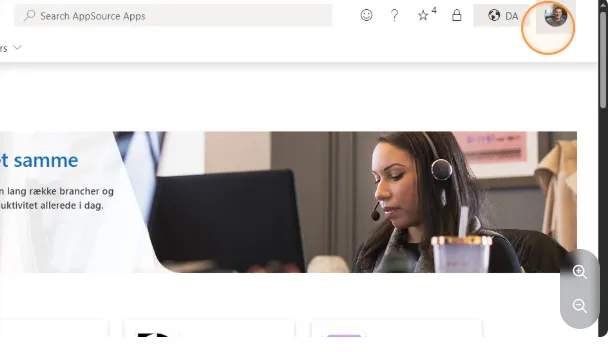
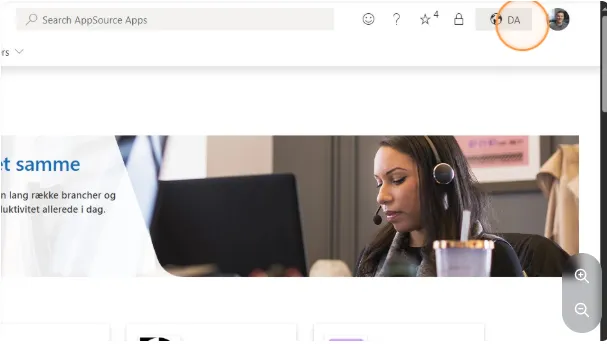
Once logged in, click on the field with the globe and either “DA” or “EN” next to your profile picture.
-
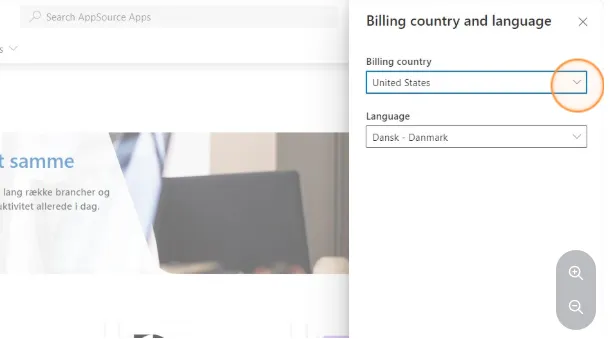
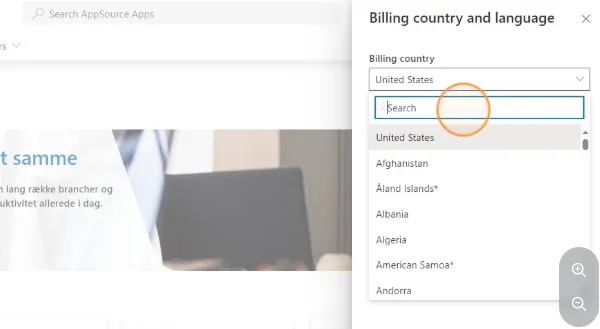
Here you need to change your “billing country” to Denmark by clicking on the small arrow pointing downward.
-
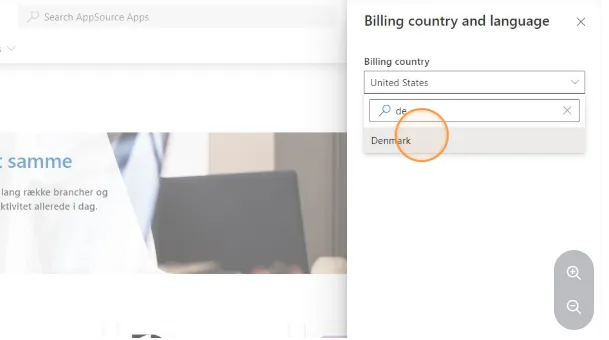
Then search for “Denmark” in the search field.
-
Select “Denmark” from the result that appears.
-
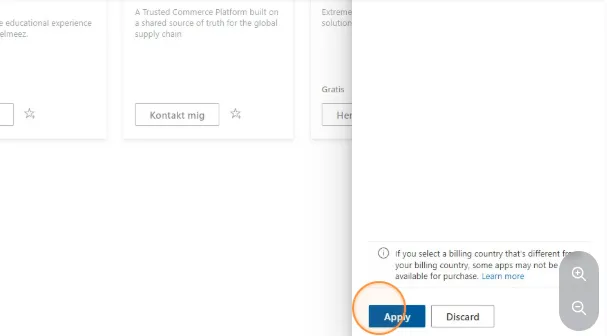
After that, go to the bottom of the panel and click on “Apply”.
-
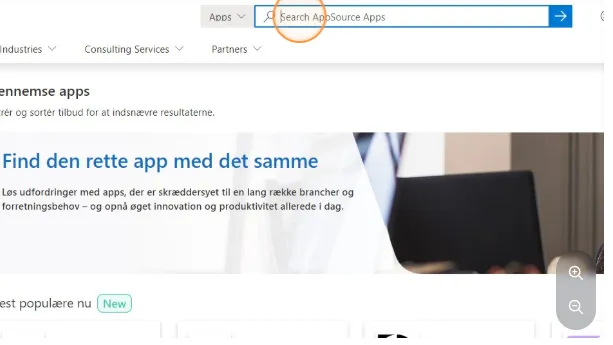
Once this is done, go to the search field in the middle of the page.
-
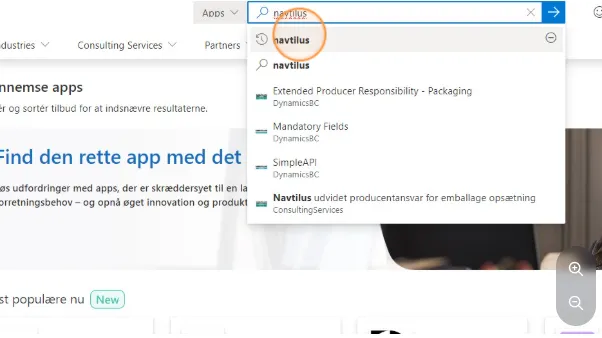
Search for “navtilus”.
-
Then select “Navtilus”.
-
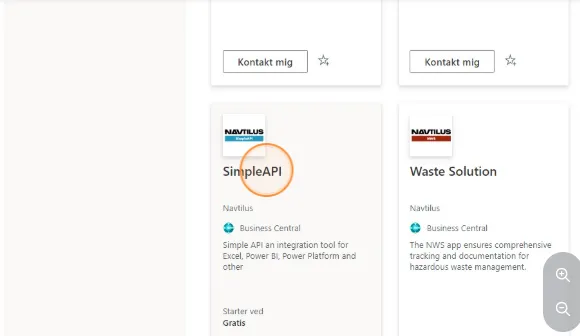
You will then see a list of all the apps that Navtilus has published. In this example, I click on “SimpleAPI”, but the process is the same regardless of which app you use.
-
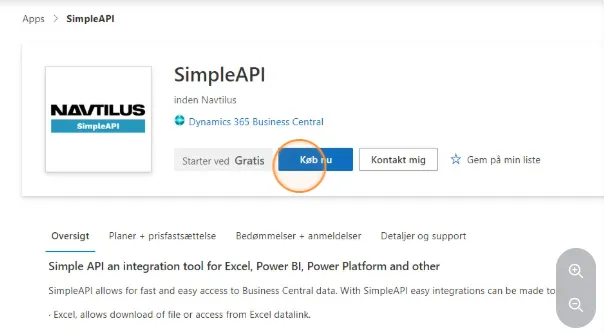
You will then see a page with all the information about the app. Click on “Buy now” here.
-
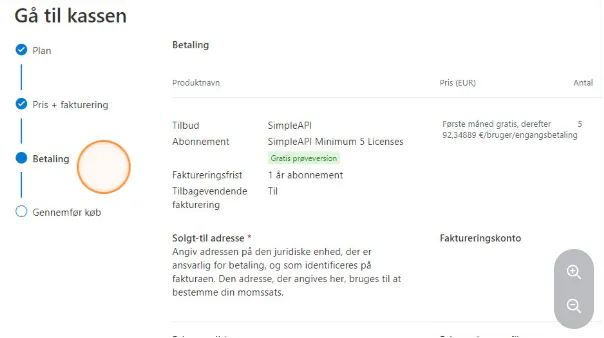
This takes you to a new page with a plan on the left side showing step by step what you need to do.
-
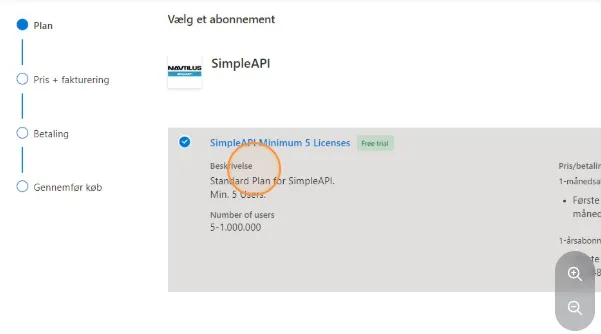
The first step is to select a plan, which can be anything from one to several different plans.
-
Then click on “Next” at the bottom.
-
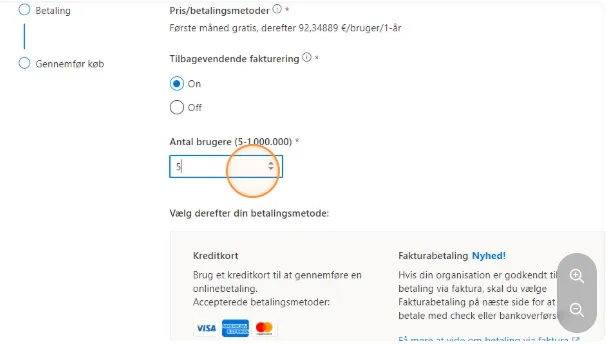
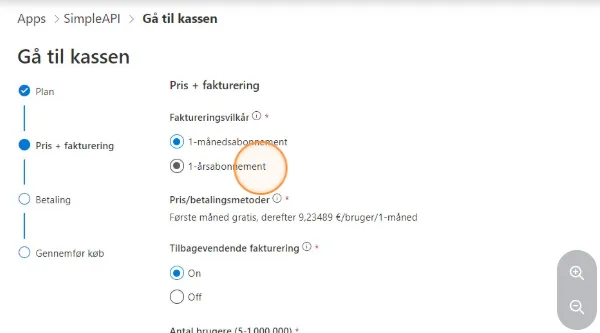
Here you can select your billing preferences.
-
You also have the option to choose how many users you want to purchase for in the field “Number of users (5-1,000,000)”.