

Assigning user permission sets in Business Central
This guide shows how you assign users the permissions they need to use the app.
-
Go to the role center in your Business Central.
-
Use the search field by clicking on the magnifying glass or by using the shortcut ALT + Q
-
Enter “users” in the search field.
-
Select the related link.
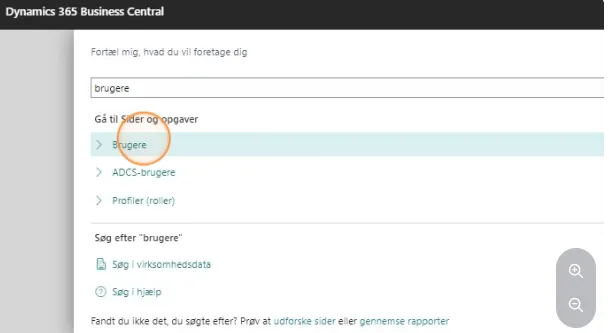
-
Find the desired user on the list and open their user card.
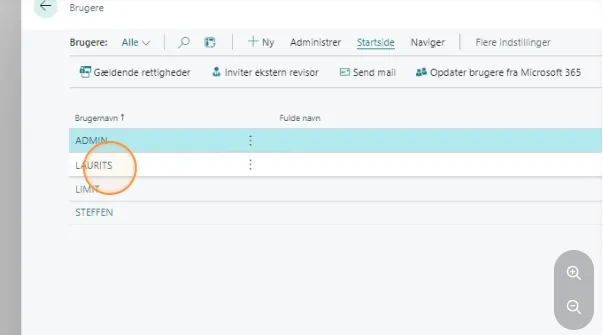
-
Find the bottom line under user permission sets.
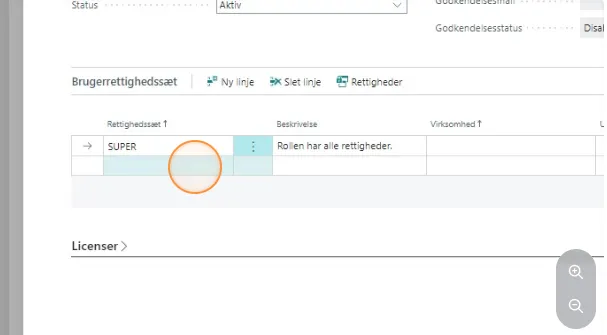
-
Then click on the 3 small dots.
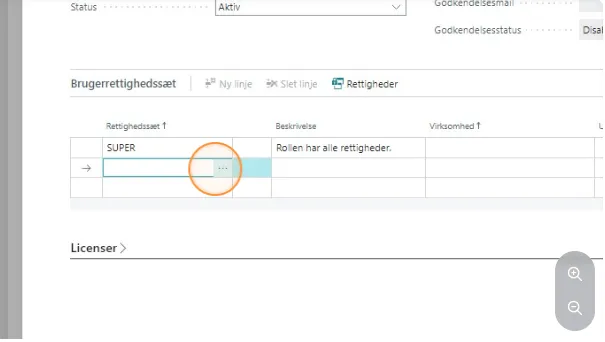
-
In the new window, click on the magnifying glass.
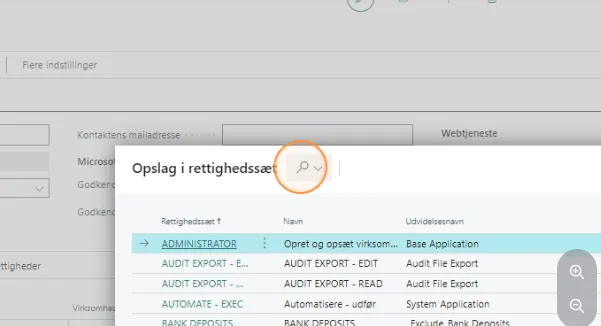
-
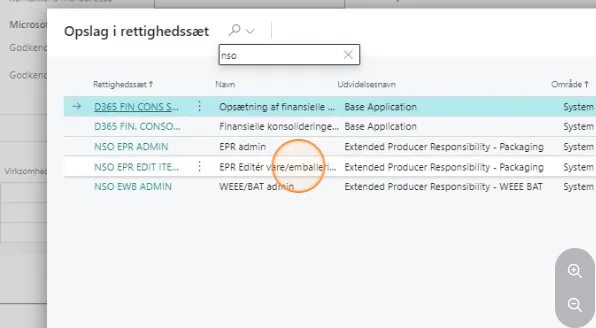
Enter “nso” in the search field.
-
Then select the relevant permission for the user.
- For regular users, “EPR Edit item/packaging details” is sufficient
- For those who need more access, select “EPR admin”
-
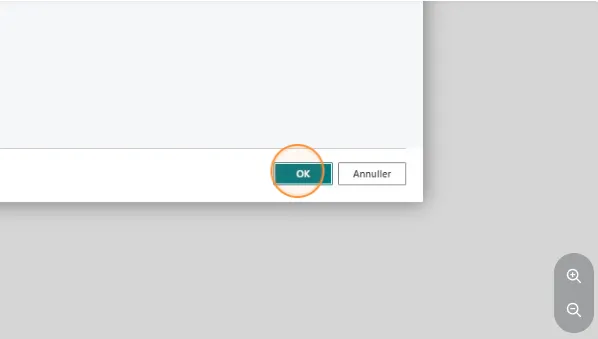
Once selected, click “OK” in the bottom right corner.
-
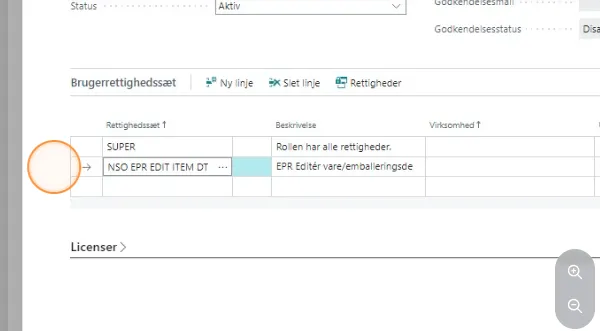
The permission can then be seen in the permissions list on the user card.
-
Once the permission is assigned, you can close the user card.