

Usage Example
Usage example: Mandatory Fields on customers
Section titled “Usage example: Mandatory Fields on customers”Use this example to see how Mandatory Fields works when you create or edit a customer record in Microsoft Dynamics 365 Business Central.
Before you begin
Section titled “Before you begin”- The Mandatory Fields extension must be installed.
- A Mandatory Fields setup must exist for the Customer table.
Step 1: Create a Mandatory Fields setup
Section titled “Step 1: Create a Mandatory Fields setup”-
Select Search (Alt+Q) in the upper-right corner.
-
Search for Mandatory Fields Setup List, and then choose the related link.
-
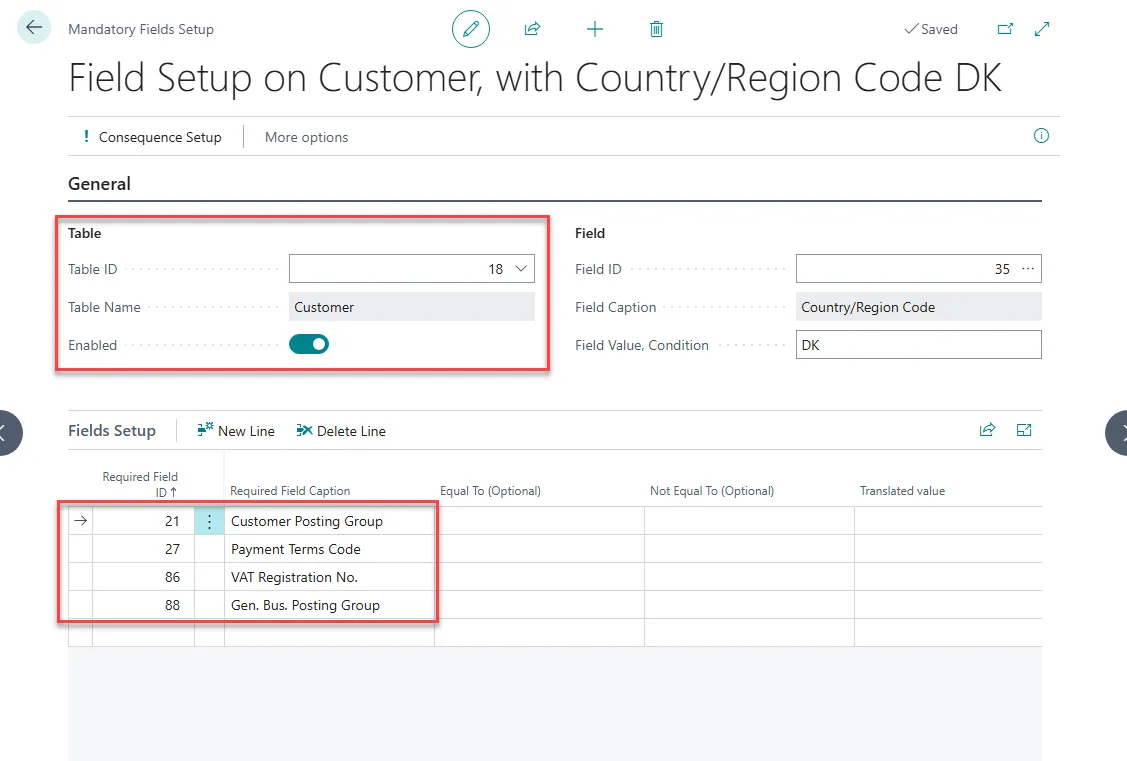
Open an existing Mandatory Fields setup, or create a new one.
In this example, the setup applies to the Customer table and requires the following fields:
- Customer Posting Group
- Gen. Bus. Posting Group
- Payment Terms Code
- VAT Registration No.
Step 2: See Mandatory Fields in action
Section titled “Step 2: See Mandatory Fields in action”- Close the setup page.
- Go to the Customer list, and then open a customer card.
- Edit any field on the customer card.
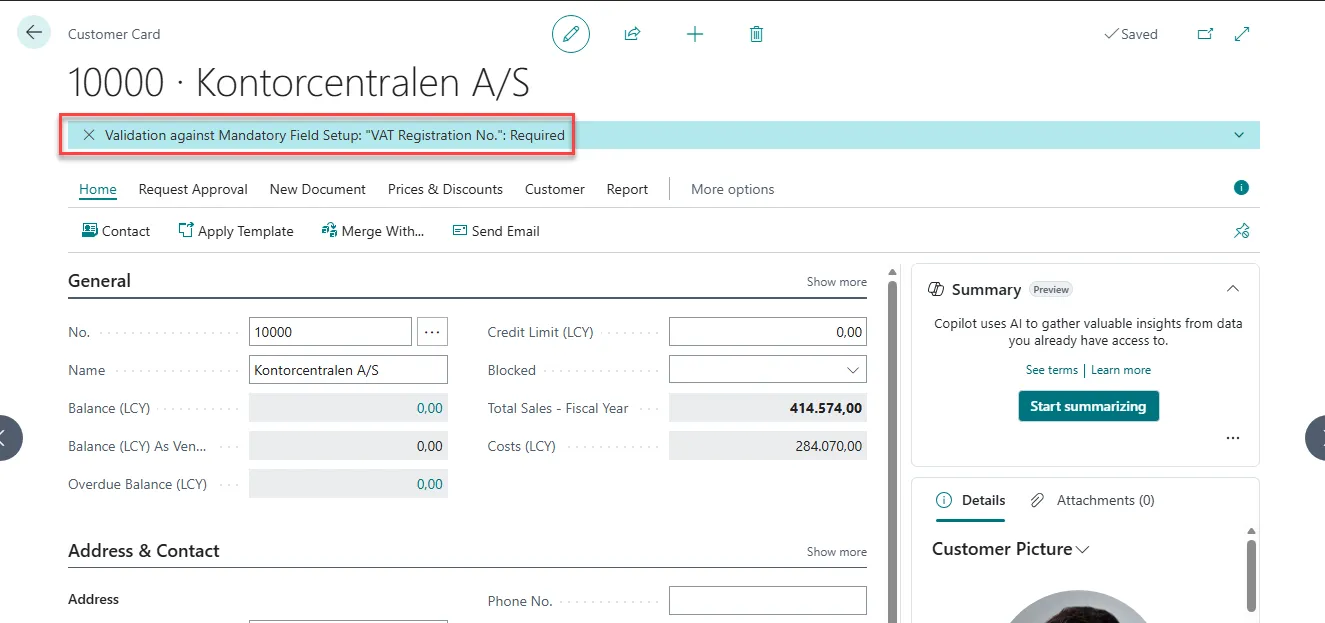
- A banner appears at the top of the page showing which mandatory fields are still missing.
Result
Section titled “Result”- Users can continue working with the record.
- The banner remains visible until all required fields are filled in.