

Uninstall App
Uninstall Mandatory Fields
Section titled “Uninstall Mandatory Fields”Use this procedure to uninstall extensions from Microsoft Dynamics 365 Business Central.
Before you begin
Section titled “Before you begin”- You must be signed in to Business Central with permission to manage extensions.
- Uninstalling the extension can permanently remove related data if extension data deletion is enabled.
Step 1: Uninstall the extension
Section titled “Step 1: Uninstall the extension”-
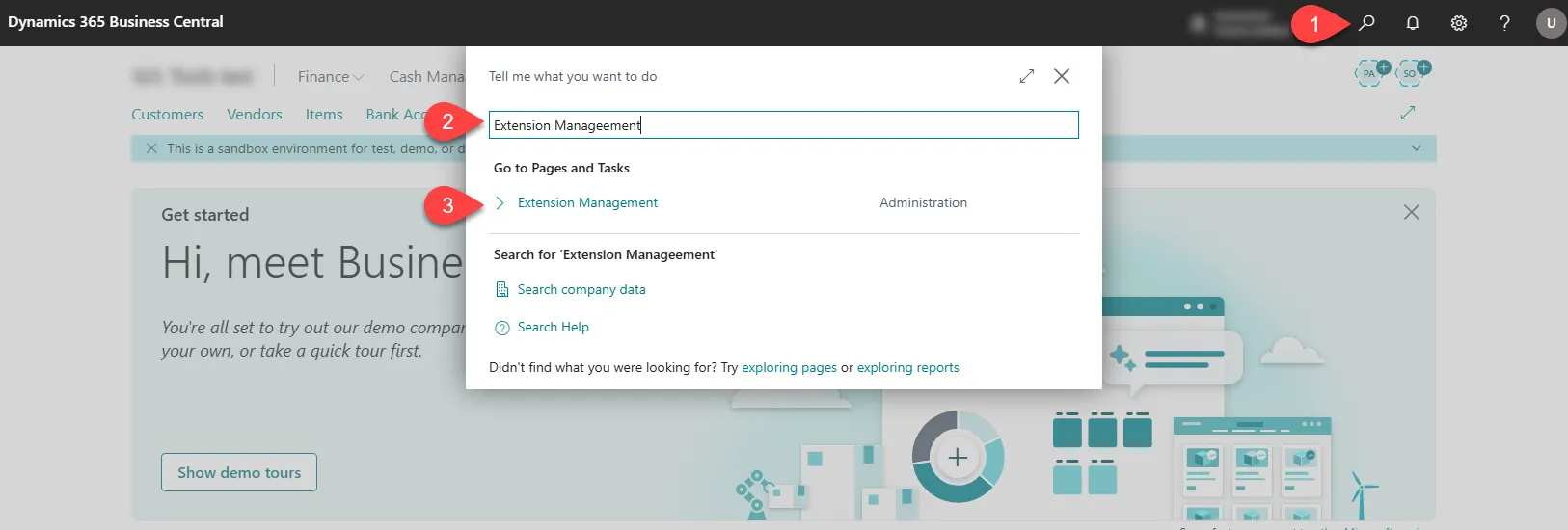
Select Search (Alt+Q) in the upper-right corner.
-
Enter Extension Management, and then choose the related link.
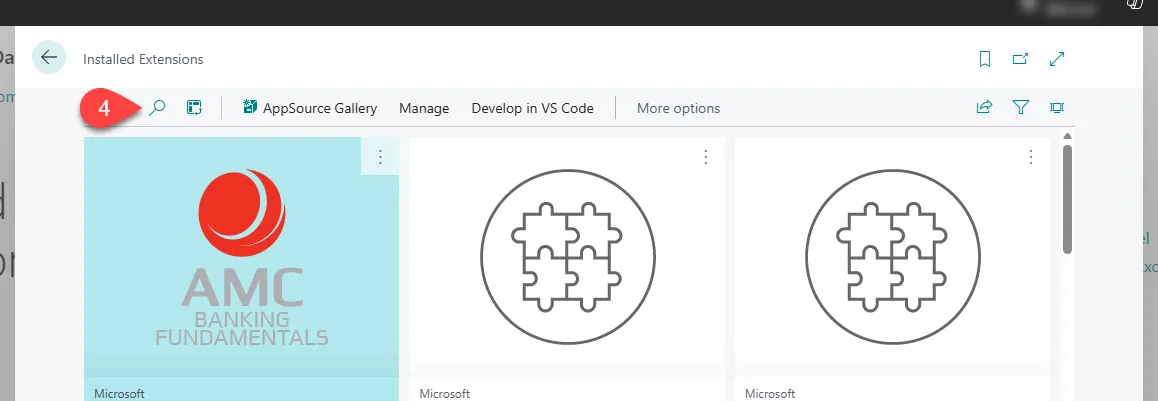
- On the Extension Management page, open Search, enter Navtilus, and then select the extension you want to remove.
-
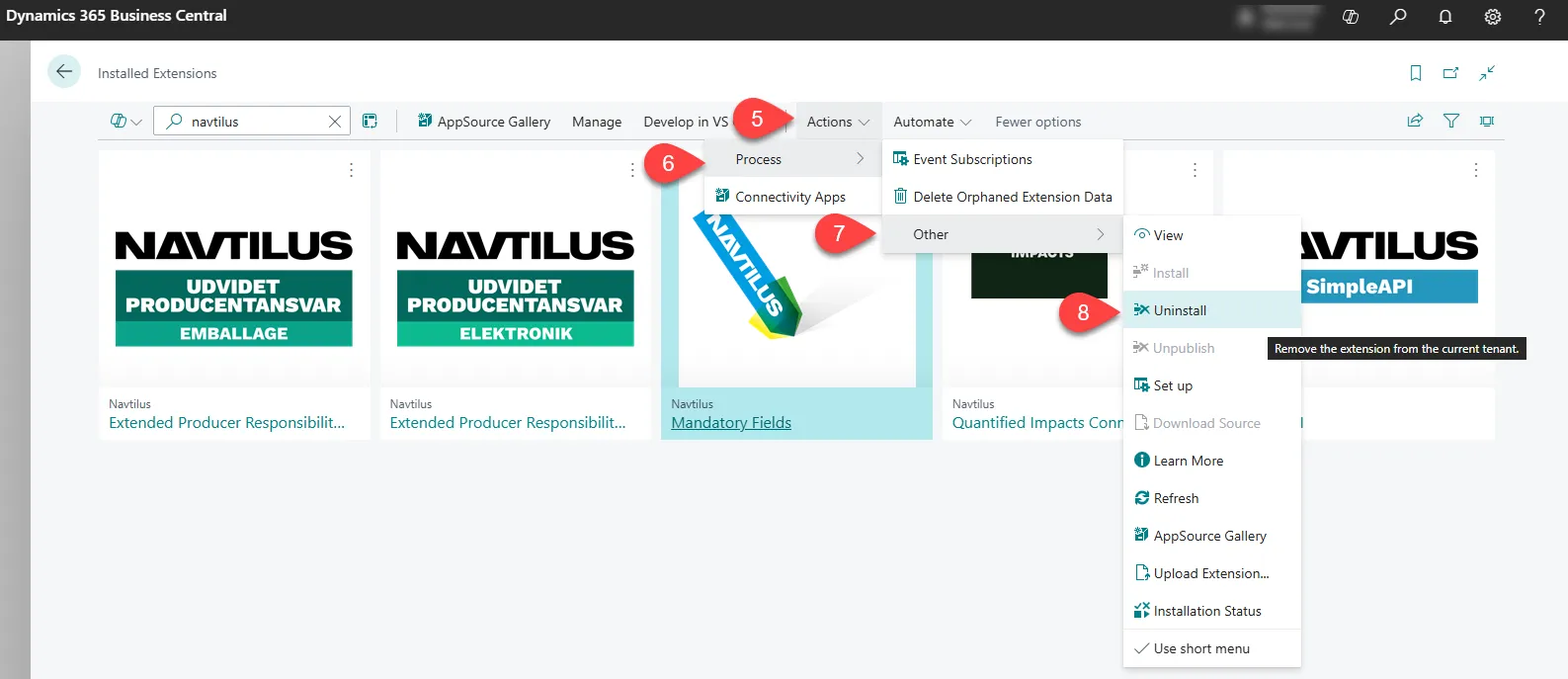
In the ribbon, select Actions.
-
Then select Proceess.
-
Select Other
-
Select Uninstall.
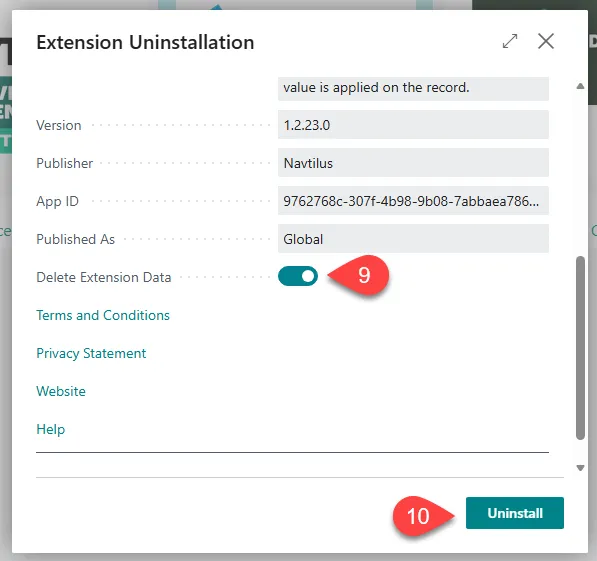
- Choose whether to delete extension data.
- To remove all data created by the extension, turn on Delete Extension Data.
- To keep the data, leave Delete Extension Data turned off.
- Select Uninstall, and then wait a few minutes while the extension is removed.
After uninstalling
Section titled “After uninstalling”- The extension no longer appears in the Extensions list.
- If extension data was deleted, the setup and related configuration cannot be recovered.