

Assisted Setup
Set up Mandatory Fields using Assisted Setup
Section titled “Set up Mandatory Fields using Assisted Setup”Use this procedure to configure Mandatory Fields by using the Assisted Setup wizard in Microsoft Dynamics 365 Business Central. Before you begin
- The Mandatory Fields extension must be installed.
- You must be signed in to Business Central with permission to run Assisted Setup.
Step 1: Find and run the Assisted Setup wizard
Section titled “Step 1: Find and run the Assisted Setup wizard”-
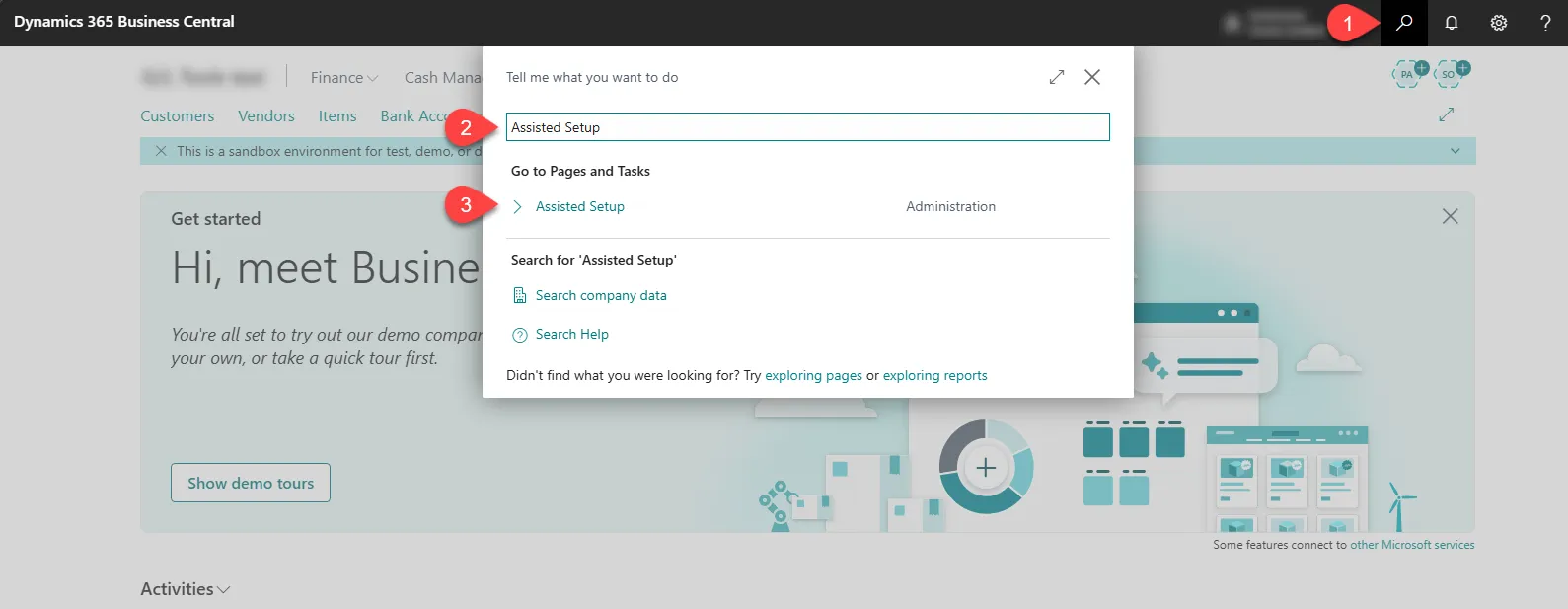
Select Search (Alt+Q) in the upper-right corner.
-
Enter Assisted Setup, and then choose the related link.
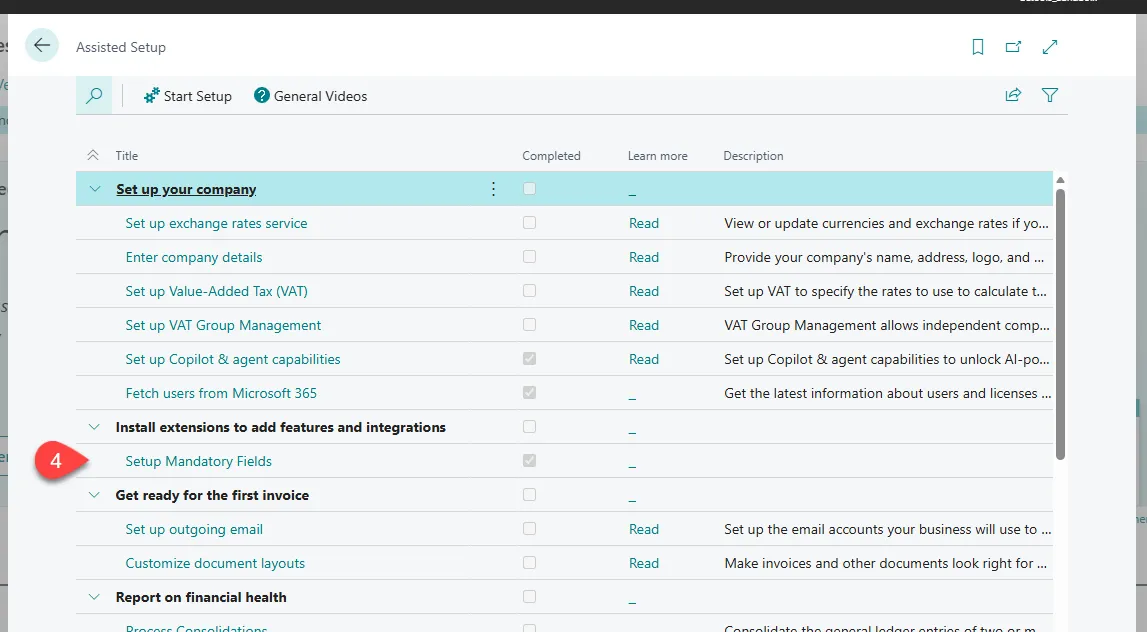
- In the Assisted Setup list, locate Setup Mandatory Fields, and then select it.
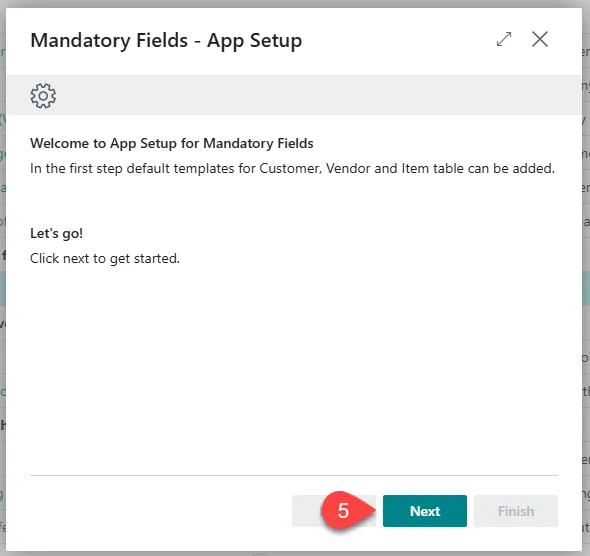
- Select Next to start the wizard.
Step 2: Select example setups
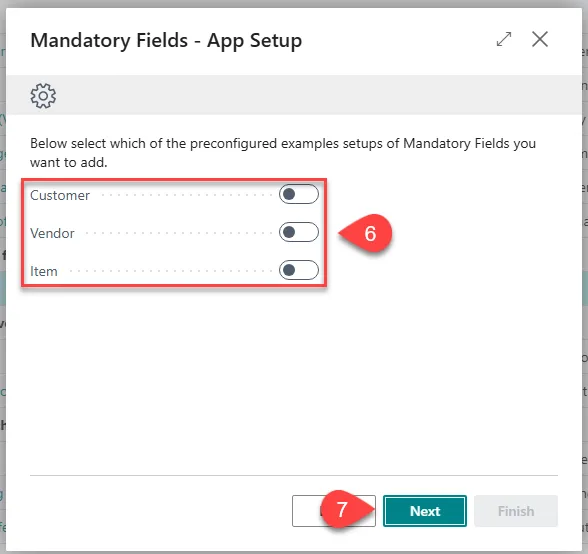
Section titled “Step 2: Select example setups”- Choose whether to activate example setups. Select one or more example setups by selecting the check box next to each option, and then select Next.
-
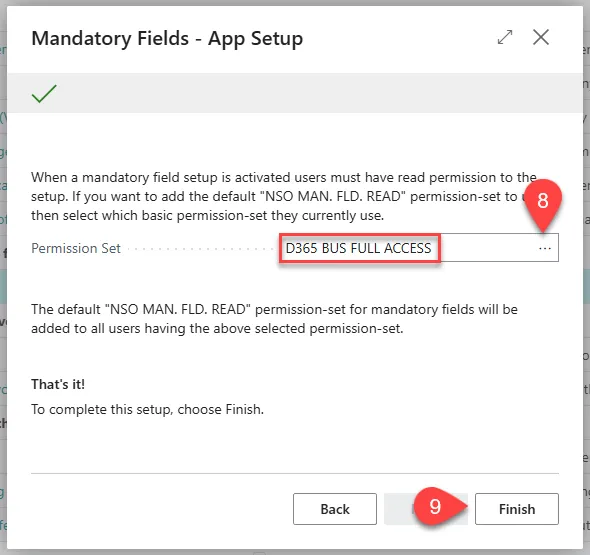
Assign the default NSO MAN. FLD. READ permission set:
-
Select the base permission set that users currently have.
-
In the permission set field, select More options (three dots) to choose the base permission set to which the Mandatory Fields Read permission should be added.
-
Select Finish when you are done.
Step 3: Complete setup
Section titled “Step 3: Complete setup”- Wait while the system restarts and applies the new settings. After the restart, Mandatory Fields is ready to use.